Varied VAT
Variable VAT allows you to control which VAT rate a product should have depending on the order format it is sold in, for example Eat here or Take away. This is particularly useful when the same product should have different VAT rates depending on the way it is served.
⚙️ How to set up variable VAT
Follow the steps below to enable and configure variable VAT for a product group:
Navigate to Settings and toggle the “Flexible Tax Rate” feature for your Tenant, then click Save.
This feature can only be enabled before sales have been recorded on today’s Z-report. If you receive an error message when trying to save, it’s because sales have already been processed. You can then either wait to activate the feature until before sales begin the next day, or create a Z-report immediately and then activate the feature.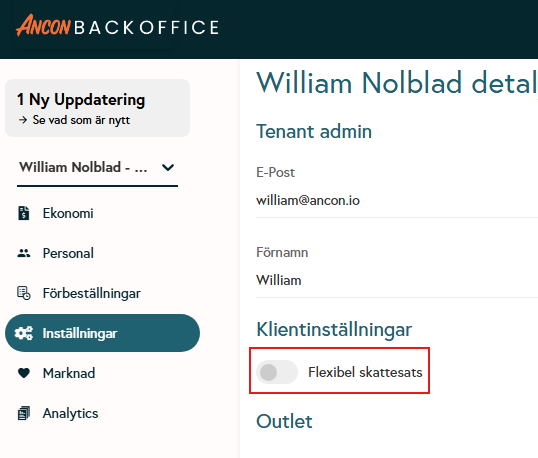
Then navigate to: Finance → Product Groups
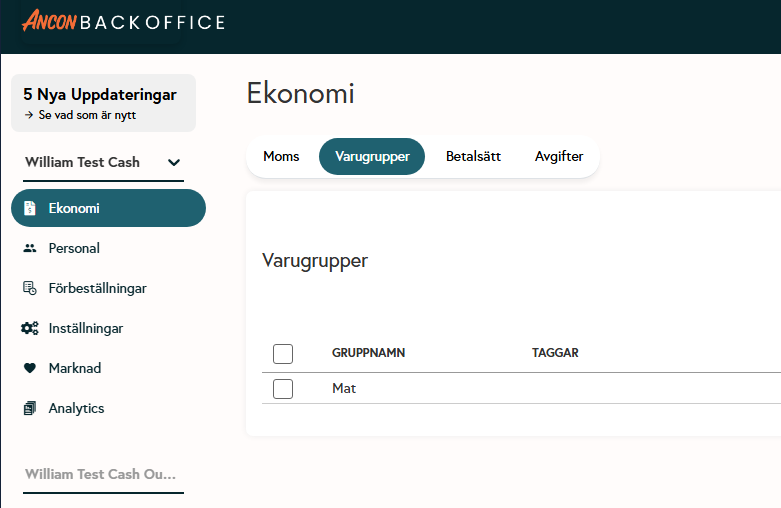
Click on the product group you want to edit, for example: “Food,” and then enable the “Variable VAT” toggle.
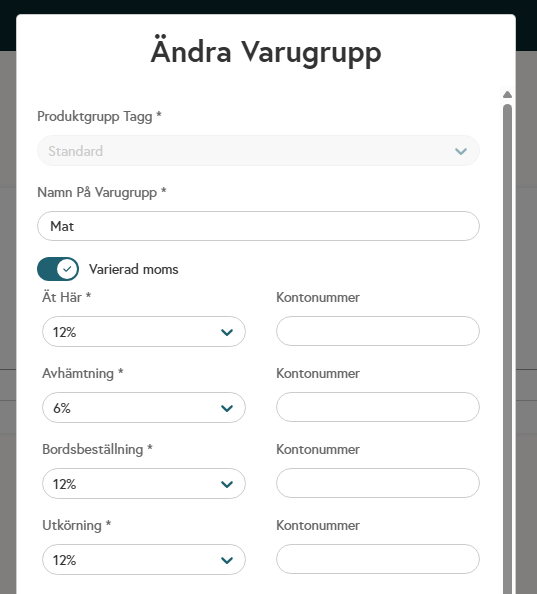
Then enter the desired VAT rate via the drop-down menu for each order format (Dine-in, Takeout, etc.) and the account number in the box on the right.
Verify that the settings are correct, then click Save.

The product category is now set up for flexible VAT. Products linked to this category will automatically receive the correct VAT rate depending on the order format in which they are sold.
🍽️ Switch order formats in POS
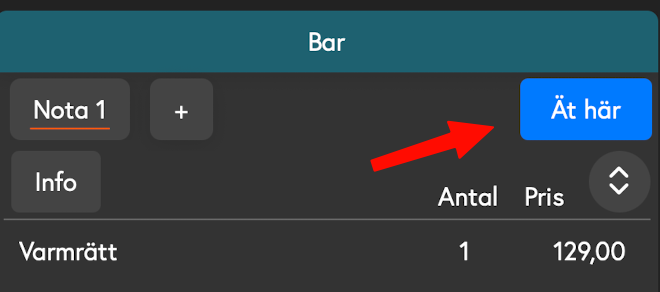
To switch between order formats, click the order format button in the bill view; the order format shown by the button is the one currently active.
⚙️Force order format before payment (optional)
To force the user to select an order format before each payment, you need to enable this feature for the respective “Equipment” (Cash Register) in the Backoffice
Navigate to Equipment.
Click on the Cash Register where you want to enable the feature.
Scroll down to “Behavior” and enable “Force order format before payment”
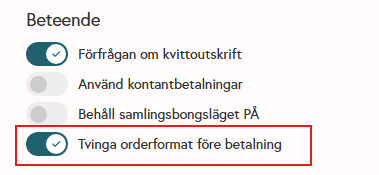
Click Save (if you cannot save, check that the Favorites menu is selected).
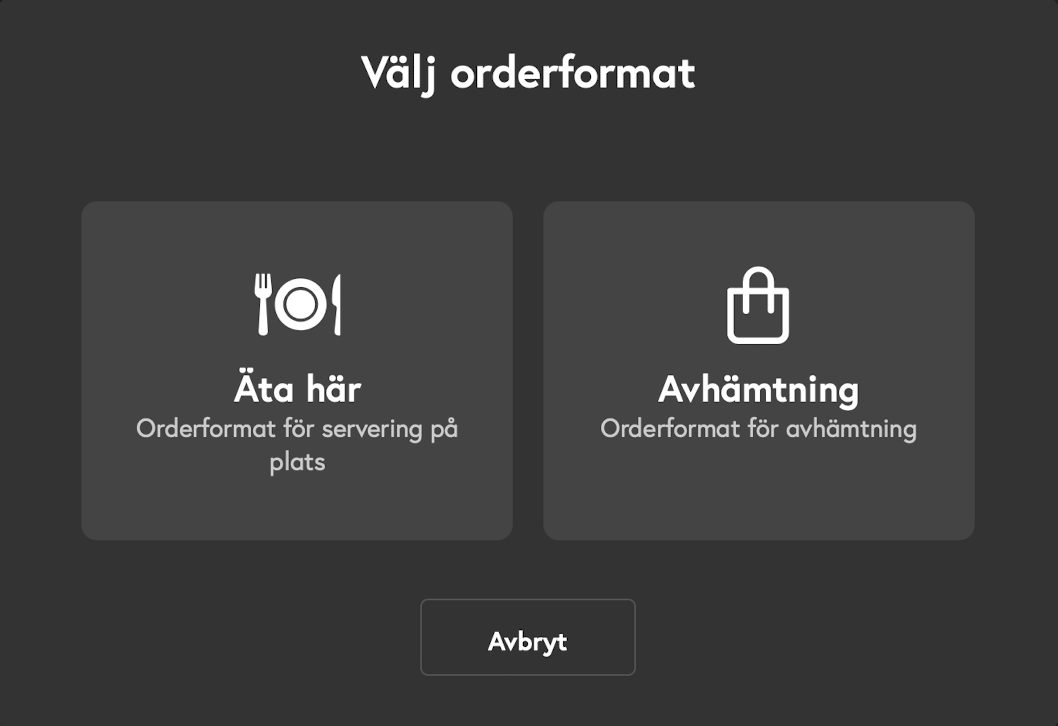
The checkout will now display the options below and ensure that the user makes an active selection for the order format before each payment.
💰 Different prices depending on order format (optional)
If you also want products to have different prices depending on the order format, this can be set up using price templates.
To create a price template, navigate to Products → Price Templates. Here you can create a price template and specify which order format it applies to (e.g., Pickup) as well as which client apps (e.g., POS and Express).
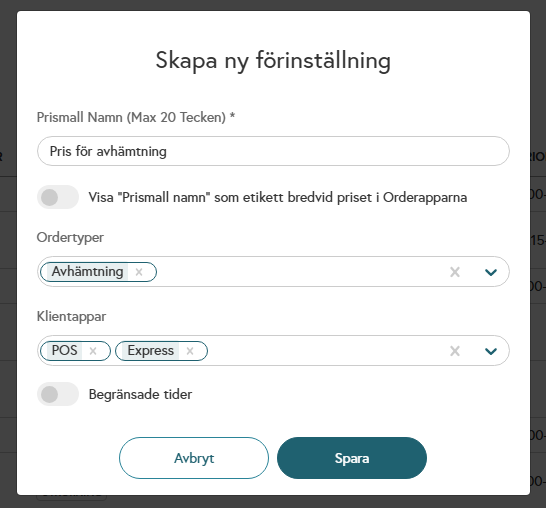
Once the price template is created, you can edit your Products, add the template, and specify a price to apply.
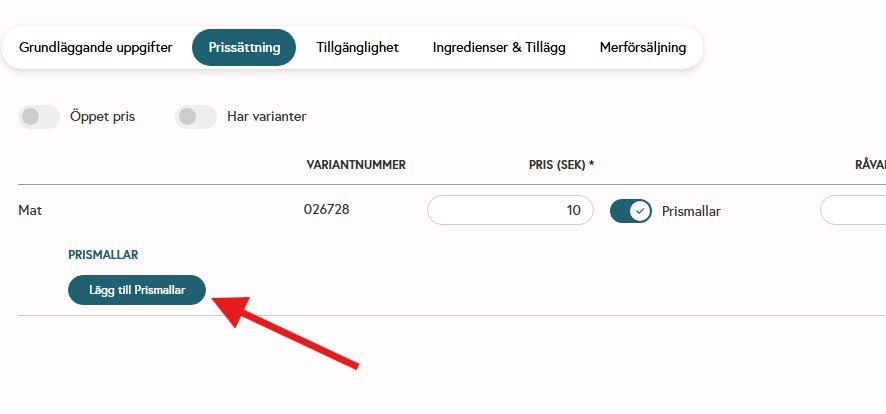
If your settings for the template are Order Types = Pickup and Client Apps = POS, Express, the price you specify for each product will apply every time someone places a Pickup order in POS and Express.
Click here for more information To access the complete guide to Price Templates
Was this helpful?
Still need help? Share an idea