Price templates
A price template is a way to collect automatic price rules in one place.
Applications
A pricing template consolidates your automatic pricing rules in the back office and enables the system to automatically update your product settings when they match:
different times (lunch, evening, weekend)
different channels (cash register, express, online)
different service types (dine-in, take-out)
different customer types (corporate customers, guest groups)
promotions and temporary offers
Common types of pricing templates
Fixed price The
same product has a set price in a specific situation.Channel-specific pricing
For example, higher prices online, or lower prices for take-outCustomer or business prices
Certain customers receive their own prices when they are identified.
How do you create a pricing template?
Navigate to Backoffice > Products

Click on Price Templates

Click Create New
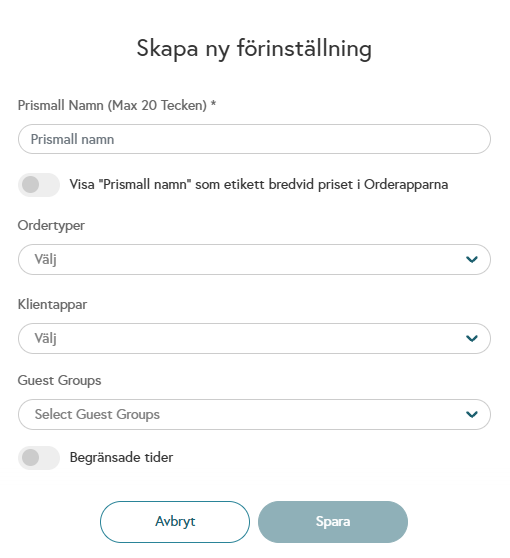
Fill in the fields that apply to your price template and click Save
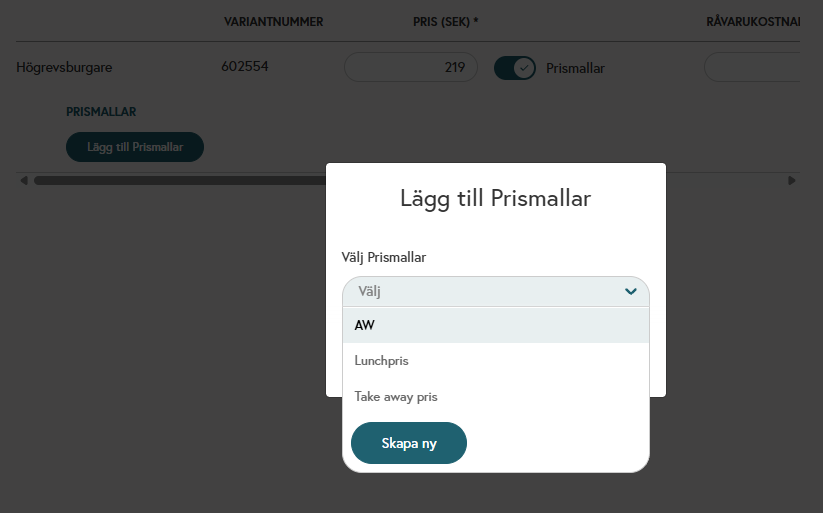
Once your price template is created, navigate to your product, activate the price template, and select which one should be active
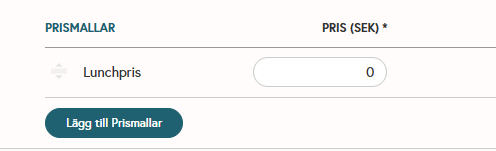
Once you’ve selected your price template, a field will appear for the new price that takes effect when the price template becomes active. Enter the price that should apply and click Save
Final steps
Once the price template is created, the next step is to specify which products it should apply to.
Go to each product and enter the price that should apply according to the price template. Once the price is entered and saved, you don’t need to do anything else. The system handles this automatically.
The price is updated and displayed automatically when:
the correct time arrives, or
the correct order type is used,
depending on how the price template is configured.
Was this helpful?
Still need help? Share an idea