Menus
Menus are used to visually present your products, both to staff at the POS and in Express and online ordering. You can choose to use the standard menu for all channels, but also create custom menus that can be assigned per checkout or channel, such as Express or online ordering.
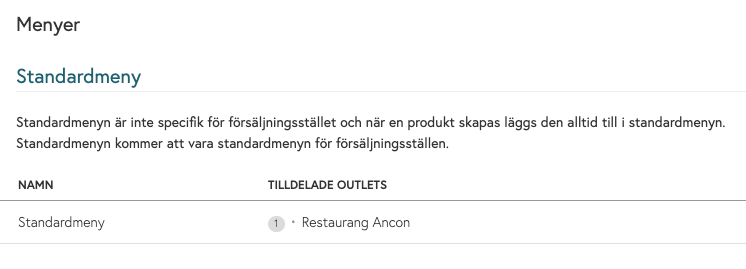
Default Menu
The default menu is the built-in menu that is always selected by default. If you choose to edit this menu and organize it into different menu groups, it will always be the active menu for all new licenses used.
Custom Menu
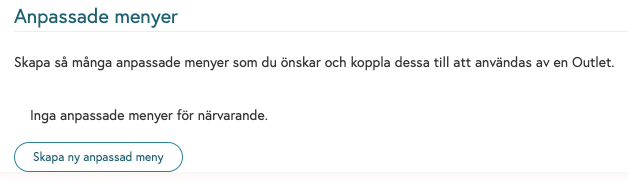
The Custom Menu is a feature that allows you to create separate menus that can be used on different platforms simultaneously. This means you can use your standard menu on all your POS devices while also creating a separate custom menu that is unique to, for example, your express registers. This way, you can ensure the checkout experience is perfect no matter where it appears.
To create a Custom Menu, click “Create New Custom Menu,” where you’ll then have the option to copy your standard menu or start from scratch and create a completely unique menu. If you choose to copy your standard menu, you’ll see an identical menu that you can edit freely without affecting your standard menu. If you choose to create a completely new one, an empty menu will appear instead, where you’ll have the option to start creating menu groups from scratch.
Example: The
outlet has a “Standard Menu” that applies generally
A specific POS in the bar gets a bar menu via a custom menu → That POS then displays the bar menu instead of the standard menu.
Create Menu Group
To create a menu group, navigate to Backoffice > Products > Menus > Select “Standard Menu” and click “Manage Menu.”
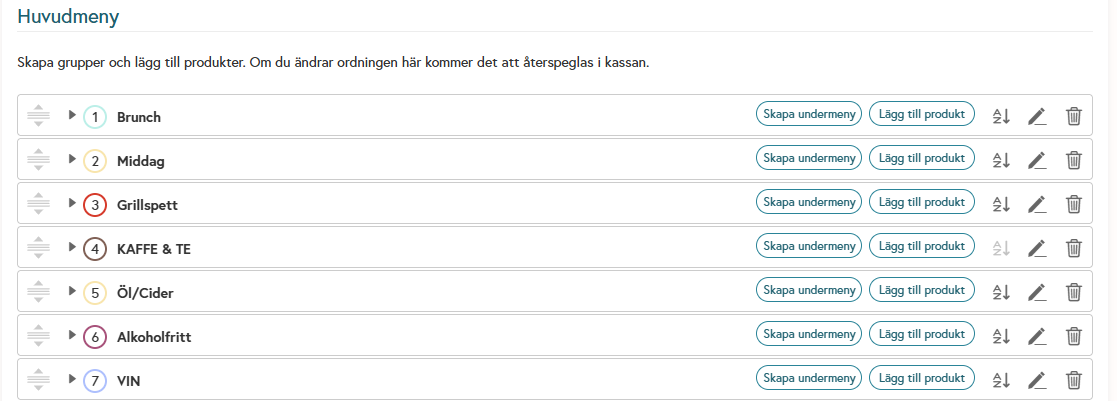
To start building your menu/menu groups, click “Create Group” > Give it a name and color, then click “OK” You have
now created a menu group, and to view your different menu groups, there must be at least one product linked to it.
To link a product to a menu group, navigate back to Products > Search for your product and click the small pencil icon to edit. In the menu group field, select the menu group you just created and then click Save.
A common set of menu groups is usually “Appetizer,” “Main Course,” “Dessert,” or “Food,” “Drinks,” “Wine,” “Beer,” etc.
Was this helpful?
Still need help? Share an idea