Favorite menu
Favorite menus are special menu groups designed to provide quick access to frequently used products in the POS. They can be created centrally by administrators and customized individually by POS users, making the order flow faster and more efficient at the checkout.
Create a new Favorites menu
Log in to the Back Office.
Go to the “Menus” tab.
Here you can manage all menu groups.
Create or select a menu.
You can create a new menu or use an existing one.
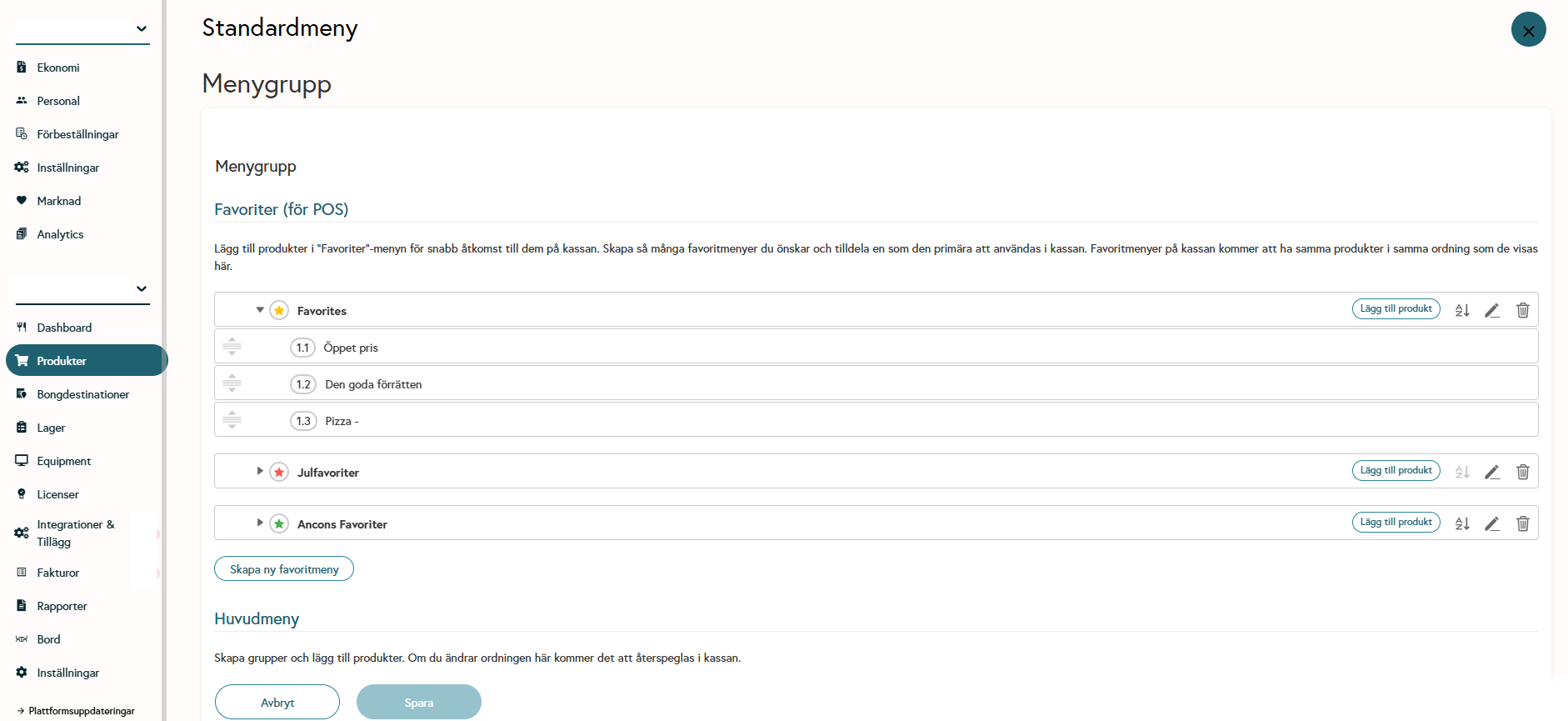
Create a new favorite menu
Assign a unique name and color for easy identification.
Add products to the favorite menu group.
Use the product selector to search for and add products.
You can see which products are already assigned and add multiple at once.
Set up a Favorites Menu for a specific POS
Log in to the Back Office.
Go to Equipment.
Select the POS you want to configure.
Assign a primary favorites menu so it can be used at the register.
Tip
The favorites menu can also be changed directly in Ancon POS under POS Settings
The assigned favorite menu is visible to all users in POS.
Multiple favorite menu groups can exist, but only one can be primary per POS.
Add products to a Favorite Menu directly in Ancon POS
Open Ancon POS and log in.
Go to the menu view.
Find the product you want to add as a favorite.
Press and hold (long press) on the product’s tile.
A pop-up window with product information and options will appear.
Tap the star icon or the “Add to Favorites”option.
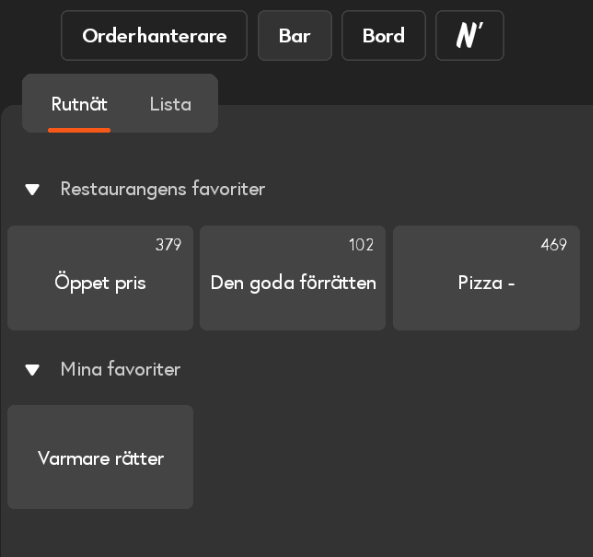
The product is now added to your personal favorites menu group.
Important to note
Favorites saved via POS are only available to the user who added them. These can be found under the primary favorites menu, clearly separated.
Was this helpful?
Still need help? Share an idea