First steps in POS
In this guide we will go through how to log in and connect a POS client and basic checkout functions. If you have purchased your equipment from Ancon, the iPad is already prepared through our MDM - Hexnode. Ancon POS should then already be installed. If you have acquired your own equipment, you need to download Ancon POS from the Apple Store or Google play.
Link to extended guide for equipment installation
🚀Get started with Ancon POS
Step-by-step Login
Launch the app
Open the Ancon POS app on your device.
Click Get Started.
Enter your login details
Enter your email address (username) and password. (This information has been sent to you via email.)
Click Log in.
Select Sales Unit
To complete the login process, you need to fill in the three fields:
Tenant (Main account): Select the Tenant account you want to connect.
Outlet (Point of sale): Select your Outlet. This is usually the name of the restaurant/unit.
POS client (Cash register license): Select the POS client to be linked to this particular cash register unit/license.
Click Continue.
Log in with your PIN
Enter your four-digit PIN to open the cash register. (You will find the PIN in the same email as your other login details.)
💡Tip
You can create additional logins for your staff in the back office. To see how to do this, click on the link here.
🖥️ Overview of Ancon POS
Here is a brief overview of the most important functions and buttons in the checkout interface
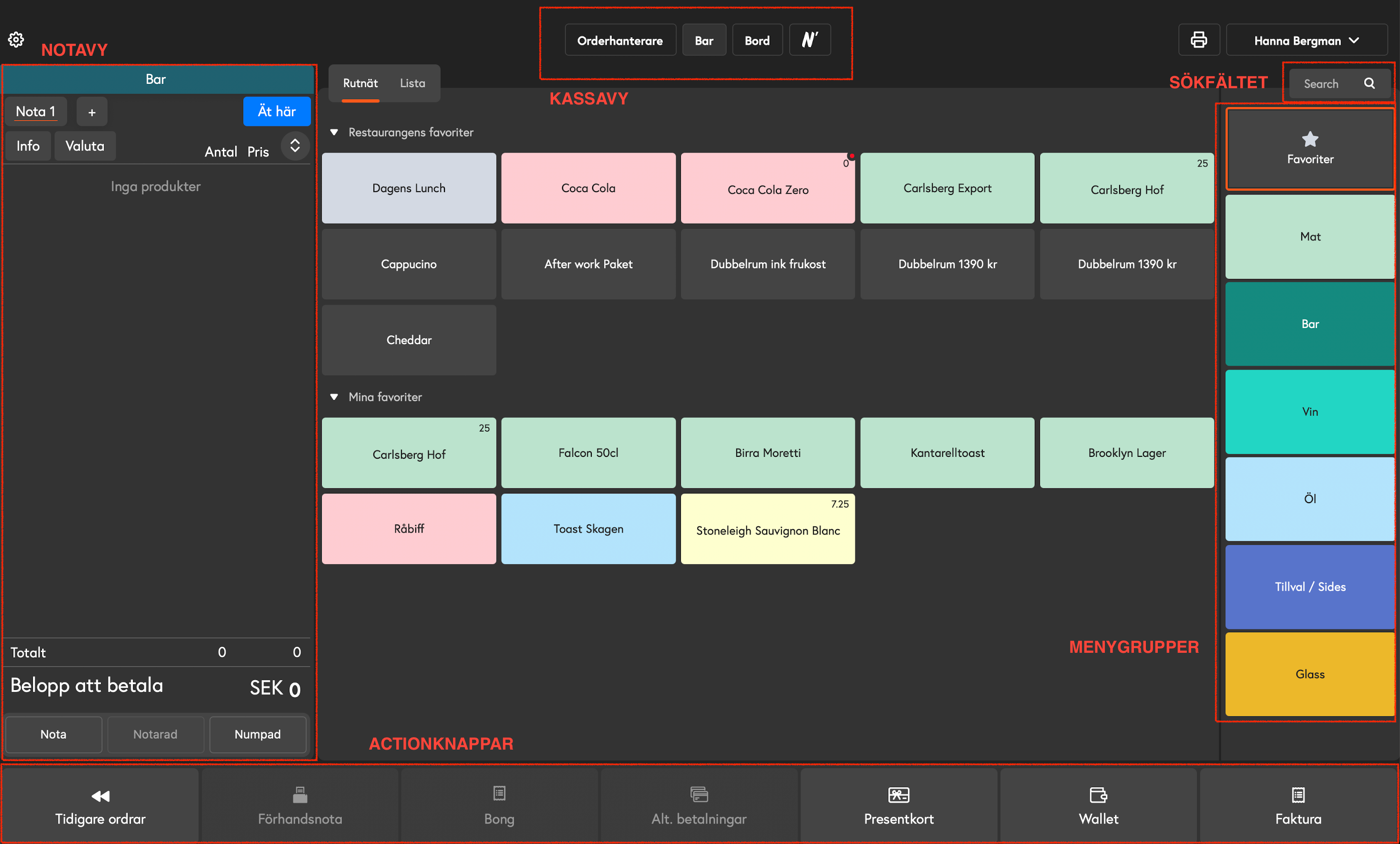
Notavy - function buttons
1. Receipt - affects the entire receipt
Here you can manage the entire bill using the following functions:
Split: Used to split a bill between several guests. For more information on how to split the bill, click here.
Move: Once you have entered a bill, you can use this button to move the entire bill to a specific table or from bar mode to table mode.
Bill name: Allows you to assign your own name to the bill instead of it being assigned a sequential number. This function can be automated with a pop-up after scanning or payment.
Receipt number: You can choose to assign your own receipt number to the bill. This function can be automated with a pop-up after receipt or payment.
Discount: Choose to give a discount on the entire bill. You can specify the discount as a percentage or a fixed amount. Predefined discounts are created in Backoffice. To learn more about how to create discounts, click here.
Delete: Deletes the entire bill.
2. Invoice - Product level
Here you can manage the bill at the product level.
Note! You must first select the individual product on the bill for these functions to become available.
Kitchen message: Choose to write a message to the kitchen. You can also use ready-made messages created in Backoffice. To learn more about how to create kitchen messages, click here.
Change price: Allows you to change the price of the selected product directly on the bill.
Remove: Removes only the selected product. You can also use the + buttons that appear when you select the product.
Discount: Choose to give a discount only on the selected product.
Edit: Used to make changes to the selected product, such as changing variants or options.
3. Order types
The default setting is Eat here, but you can switch to Takeaway by clicking the button.
4. Numpad (Numeric Keypad)
Used primarily for two purposes:
Add more than one product at a time (e.g., enter "5" followed by "Coffee").
Pay part of a bill with different payment methods (e.g., enter "200" followed by Cash, and the remainder can then be paid by card).
5. Info (Bill history)
Here you can access the bill history to see all events that have occurred on the bill, including:
The time of the event and who made the change/action.
Change of bill owner.
6. Start multiple bills (+)
Start multiple invoices in the invoice view by clicking on "+".
Menu groups
Here you can navigate between your main menus and submenus to quickly find the products to be entered.
[video or gif when pressing menus/submenus]
Cash register views - Bar, Table & Order Manager
[video or gif when you press bar, table order manager]
You can switch between three different cash register views:
Bar: The default mode when you log in. Used for direct sales, where the purchase is made immediately at the cash register.
Table: Your created tables are displayed here. Used for table service to place the bill on a table. Click here to learn more about table management. To see how to create your table map, follow this link: Table map.
Order Manager: Here you can view and manage all orders placed via Ancon Order, Deliverect, or app/web orders connected via API integration.
Action buttons
[video or image of action buttons]
The row at the bottom of the checkout is called Action buttons. You can customize these as needed for quick access to important functions such as:
Previous orders: To make a refund, retrieve a copy of the receipt, go to previous orders.
Bonga: Click this button when you want to send your bill to, for example, the kitchen or bar. Hold down the button to start a collective bonga.
Pre-bill: Here you can print a pre-bill to give to guests before they pay.
Alternative payment methods: Here you will find a complete list of all payment methods that are activated in the back office.
Custom payment methods: If you have created your own payment methods, you can make them available in the Action bar.
Integrated payment methods: Such as invoices, gift cards, wallets, Mews, etc.
Cash/cash register: Only available if you have enabled cash payments.
To learn more about how to change and customize the Action buttons, click here.
Search field
Used to quickly search for products.
If you have added tags to your products, you can also search for these to find what you are looking for more easily. To learn more about how to create tags, click here.
⚙️ Settings
To access the settings in the checkout, click on the gear icon (⚙️) at the top left.
Start: Here you can set up and save your cash register and change the language. You can also remove the link to the checkout if you need to log in to another license.
X/Z report: Here you can view, create, and print your X and Z reports.
POS settings: Learn more about the different POS settings by clicking here.
Authority control: If the Tax Agency visits you and requests an extract from a specific date, you can print a control strip here. Fill in the date and click Print control strip.
Diagnostics: This field is only used by support to retrieve system information during troubleshooting and does not need to be used by you.
Was this helpful?
Still need help? Share an idea