Multi-product
A feature to combine multiple products into one package for smoother sales and offers
A multi-product is a product consisting of several sub-products that are sold together as a package.
Example:
“Lunch Menu” = Main Course + Beverage + Coffee
“After-Work Package” = Beer + Snacks
“Gift Card Package” = Gift Card + Physical Box
Purposes of multi-products:
Simplify the sale of pre-made packages in POS/Express
Ensure correct pricing and VAT (all items are added together)
Control which combinations can be sold together
Before creating your multi-product
Before creating the multi-product itself in Backoffice, you should:
Create all sub-products (e.g., “Today’s Special,” “Soft Drink 33cl,” “Coffee”)
Ensure that:
They are listed at the correct outlet
They have the correct price, tax, and category
Any variants (e.g., flavor, size) are set up
How to create the multi-product itself:
Navigate to the Back Office
Click on Products

Click “Create New”

Select Product Type: Multi-product

Fill in the standard information:
Name (e.g., “Weekday Lunch Menu”)
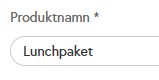
Product group and VAT (VAT is later determined by each sub-product if you are not using a base price)

Status/Active (if it is to be sold immediately)

Add sub-products
Click on Go to advanced settings

Click “Add product”
Search for each sub-product you want to include in the package.
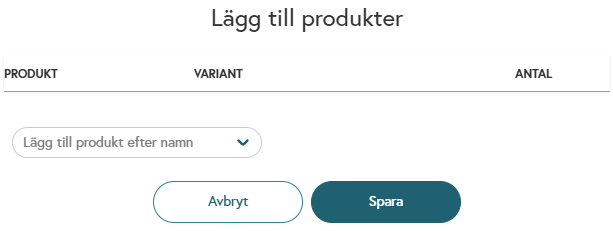
For each sub-product:
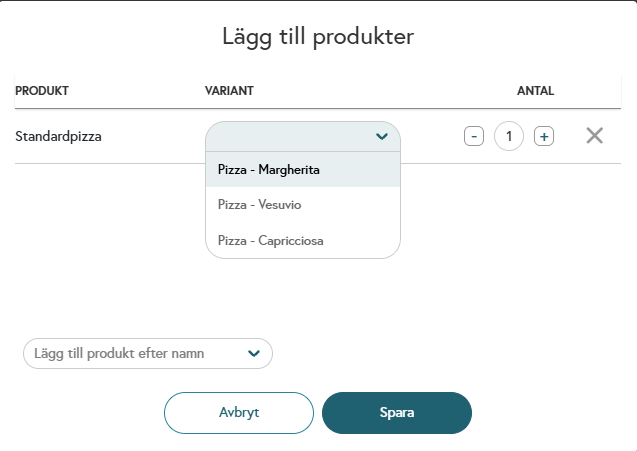
Select the quantity (e.g., 1 drink)
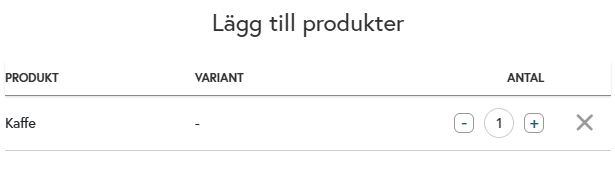
If the sub-product has variants (e.g., different flavors/sizes):
Configure which variant is active:
Set the price & total amount
Choose whether the multi-product should:
Have its own package price (e.g., $129 for everything)
– If you choose to enable Base Price, the entire multi-product’s price and tax will be based on the price and tax you select for the product itself. This means that the sub-products’ tax and price are completely ignored.
Or, if you want the price to be the sum of the sub-products, leave Base Price disabled.
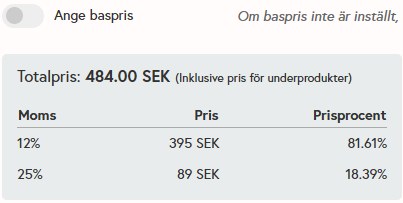
Check VAT breakdown:
The system normally calculates the price per VAT rate.
Verify that the total looks reasonable and that each VAT rate is displayed correctly.
Click Save
Combine products
Since multi-products consist of several standard products, automatic combination can be enabled.
When this feature is active, the system detects which products are added to the bill. If these can form an available multi-product, a pop-up appears where staff can choose to combine the products into a multi-product or keep them as separate items.
The setting is configured within each multi-product and is called “Combine Products”.

Was this helpful?
Still need help? Share an idea