Manage gift cards in Backoffice
In the Backoffice, you can search for, filter and track gift cards, check the balance and status, and share gift cards with guests if necessary.
1. Find gift cards
Log in to Backoffice
Go to Marketing

Select Gift Cards
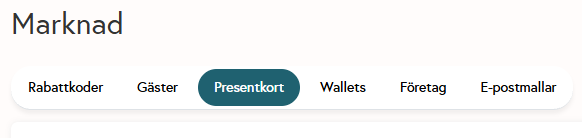
You will be taken to an overview of all gift cards.
2. What does the overview show?
In the list, you can see:
Gift card number / code
Remaining balance
Creation date and expiration date
Status (e.g., active or used)
Outlet where the gift card was created or used

This page is used to find, track, and share gift cards, as well as for troubleshooting and reporting.
3. Search for a gift card
Use the search field at the top of the page

Search for the entire gift card number or parts of it
Tip: Use the exact code if possible for the fastest results.
4. Filter by date
Select the From date and To date
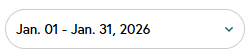
Click Save
Used, for example, to view gift cards from a specific period or check the validity period.
5. Filter by outlet
Select one or more outlets in the outlet filter
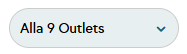
The list shows only gift cards linked to the selected outlet
Useful for tracking by store or for support cases.
6. Combine filters
You can combine:
Date range
Outlet
Search by gift card number
Example: View gift cards sold last month at a specific outlet.
7. Share gift cards
Find the right gift card
Click Share/Send
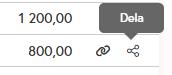
Share via email or copy code/link
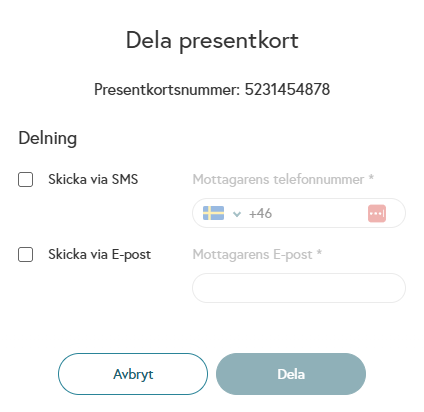
Note: Never share gift card codes in open or unsecured channels.
Was this helpful?
Still need help? Share an idea