Create discounts
Discount codes are an easy way to offer customers benefits and promotions, both at checkout and online. By creating a new discount code, you can control how, where and when the discount applies - for example, only in certain channels, on specific days or for selected products. Follow the steps below to create and configure a new discount code in the system.
Create a new discount code
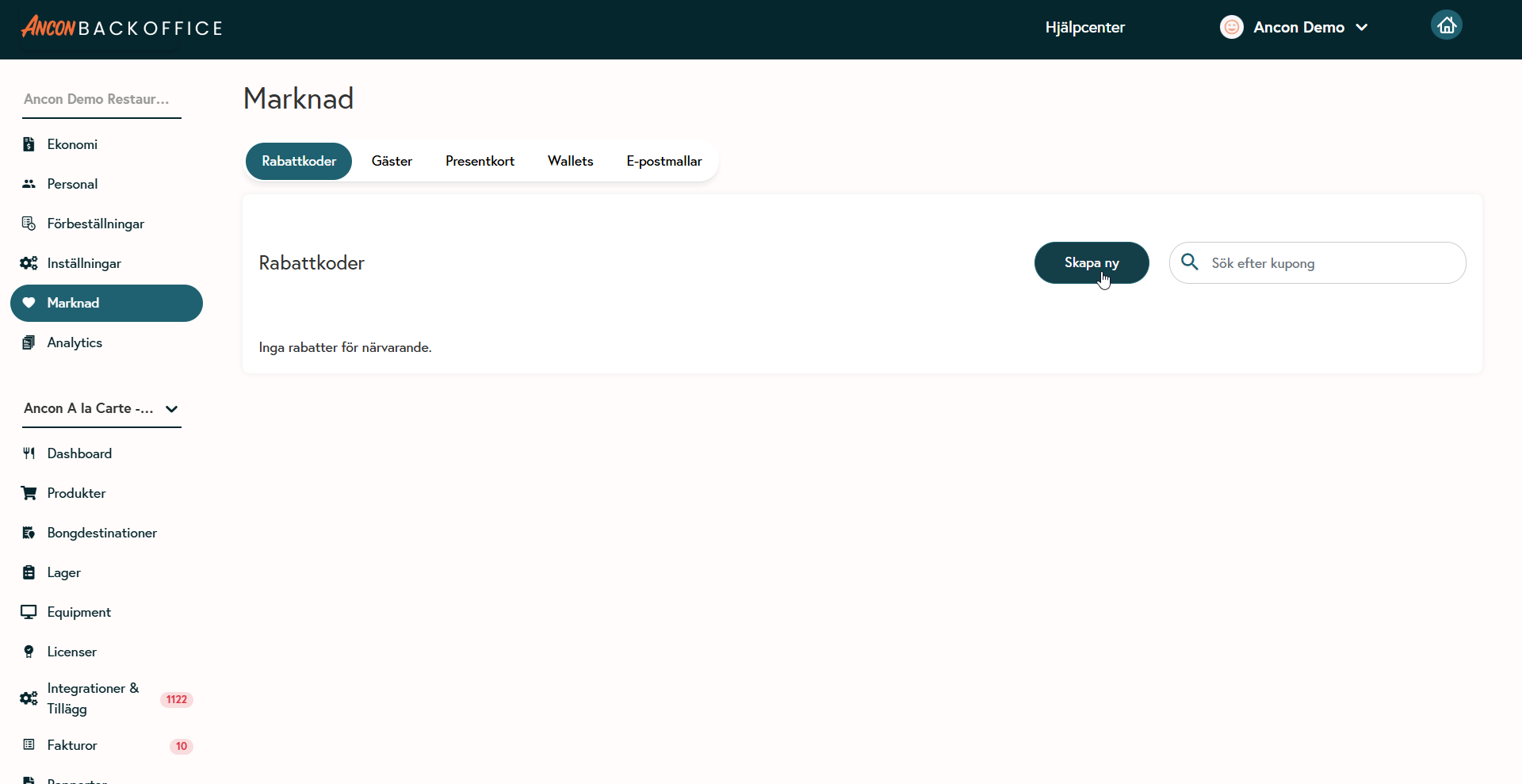
Select Market from the menu, then click Discount Codes.
Click the Create New button.
Name and code:
Give the discount code a clear name.
Enter a "Discount Code" (max 10 characters) that customers can use, if desired.
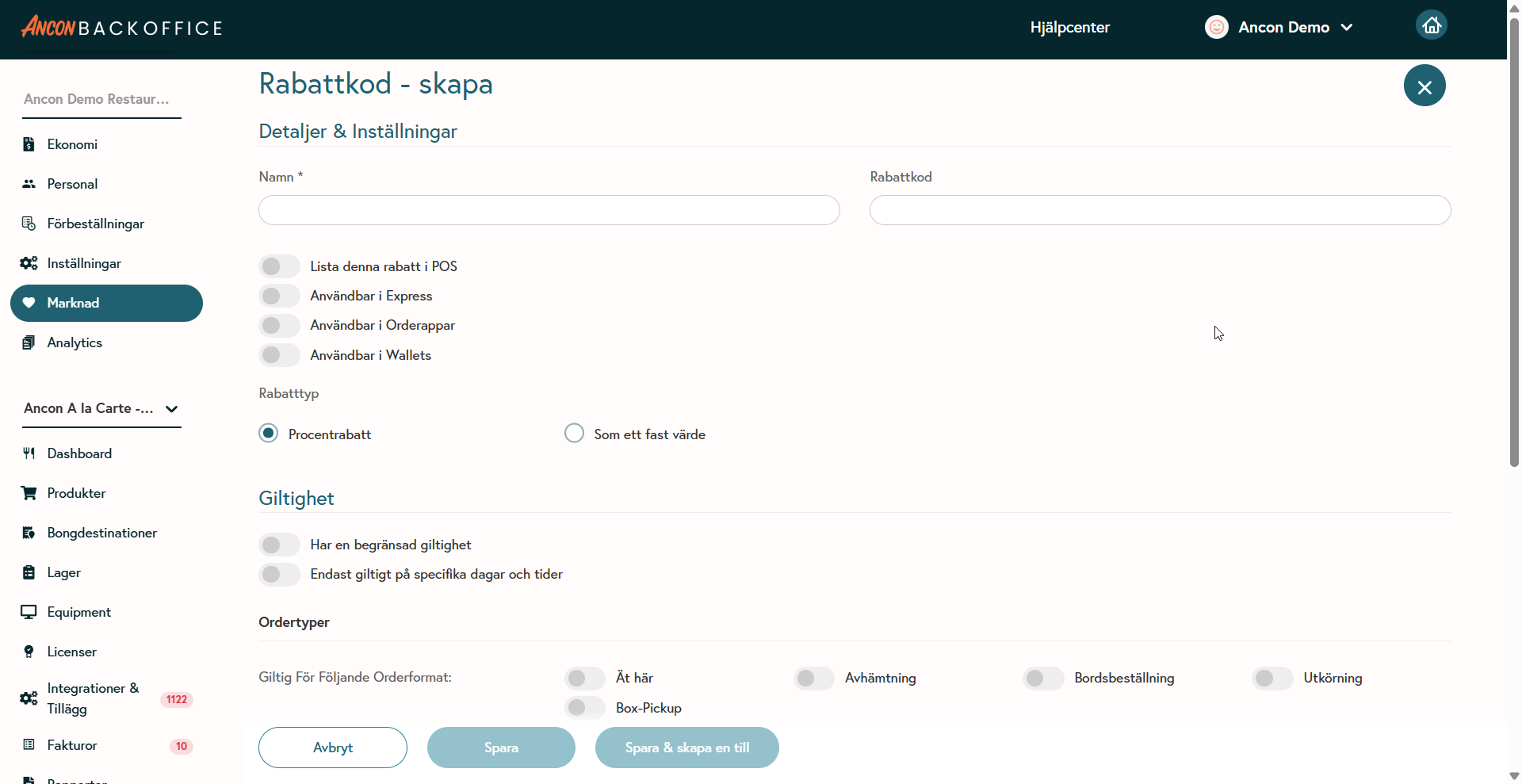
Where the discount should appear:
List this discount in POS: Enable to select and use the discount at checkout.
Available in Express: Enable to make the discount code work at express registers.
Available in Order Apps: Enable to apply the discount via the web or app.
Available in Wallets (loyalty cards): Enable to automatically apply the discount when purchasing with a linked loyalty card.
Select discount type
Percentage discount: Select this for a percentage discount (e.g., 5%).
Fixed amount: Select a fixed amount (note that this does not work in Express or Order Apps).
Set validity (optional)
Limited validity: If you wish, you can set a start and end date for when the discount applies. It will not work outside this period.
Specific days and times: You can also limit the discount to apply only on specific days and times.
Select order types
Valid for order formats: Select which formats the discount applies to, e.g., Dine-in, Takeout, Table Order, Delivery, or Box Pickup.
Outlet: Select whether the discount applies to all sales outlets or only specific outlets. Add at least one outlet.
Discount and applicable products
Apply to all products: Enable this to apply the discount to the entire bill.
Individual products or product groups: Add specific products or product groups and then specify the discount as a fixed amount or a percentage.
Was this helpful?
Still need help? Share an idea