Configuring bong destinations
A voucher destination controls where products and orders are sent when an order is placed in the system. It is possible to decide whether the voucher should be printed on a printer, displayed on a KDS or both. In addition, there is also support for making advanced configurations such as restricting sources that can vouchers, notify other destinations and change appearance.
Simply put:
“Product X should be printed on printer/Y device Z”
Typical examples:
Kitchen – food items, appetizers, main courses
Bar – beverages, beer, wine, cocktails
Serving station – dessert, coffee, sweets
KDS screen – instead of a physical printer
A receipt destination is then linked to:
One or more printers / KDS units
One or more products
Receipt printer vs. KDS
The most common setup is for a receipt destination to be linked to a receipt printer. This is the standard configuration, which means a slip of paper with information is printed from the printer when the product is rung up.
If you use KDS instead, the receipt becomes a digital note displayed on your KDS screen, where you can use it simply as an information screen or, with a little more configuration, control preparation times and indicate when the order is ready for pickup. (For more info, see our online order guide)
Create a receipt destination
Log in to Ancon Backoffice
Go to Receipt Destinations

Click “Create New.”

Give the destination a name and select which printer or KDS it should be linked to.
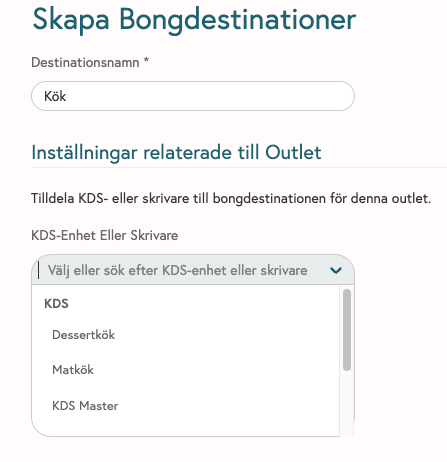
Click Save

Advanced Ticket Settings
Once a receipt destination has been created, you gain access to advanced settings that can affect the receipt destination’s behavior and the receipt’s appearance.
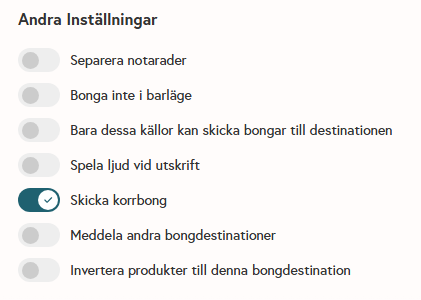
Separate receipt lines
Ensure your receipt displays a new line per product, regardless of whether it’s the same product or not (by default, “Test Product x 2” appears on the same line)Do not accept receipts in bar mode
Disables the ability to receive receipts if the POS terminal that initiated the receipt is in Bar mode. This means that it is still possible to print receipts at tablesOnly these sources can send receipts to the destination
Allows you to control which clients can send receipts to the receipt destination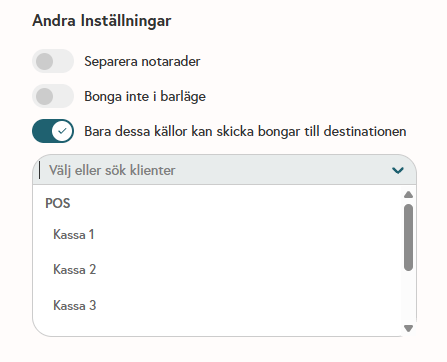
Play sound on print
Enables the printer to play a sound when printing if a buzzer (speaker) is connectedSend Correction
Bong: If a bonged item is deleted, a correction bong is sent to the kitchen indicating that the food should no longer be preparedNotify other ring destinations
Enables sending a ring to any other ring destination in addition to “ring destination 1” to provide information (e.g., to inform the cold kitchen that the hot kitchen has just started preparing its dish, etc.)Highlight products for this notification destination
A follow-up function to the previous one that notifies other notification destinations. This function highlights these products in a different color to make it easier to see which ones the kitchen should actually prepare.
Was this helpful?
Still need help? Share an idea