View the gift card balance for a selected date in Ancon Cloud
In Backoffice, you can view the remaining balance on gift cards as of a specific date, such as the end of a month or the end of a year. The remaining balance shows the gift card liability for the locations you have selected.
Here's how:
Log in to Backoffice and go to Marketing → Gift Cards
Select the outlet(s) for which you want to view the balance
Set the date filter to the date for which you want to view the balance, for example, April 30
Review the summary under “Total & Balance” above the table:
Total Sold - total amount sold on the selected date
Remaining balance—Remaining gift card balance (gift card liability) as of the selected date
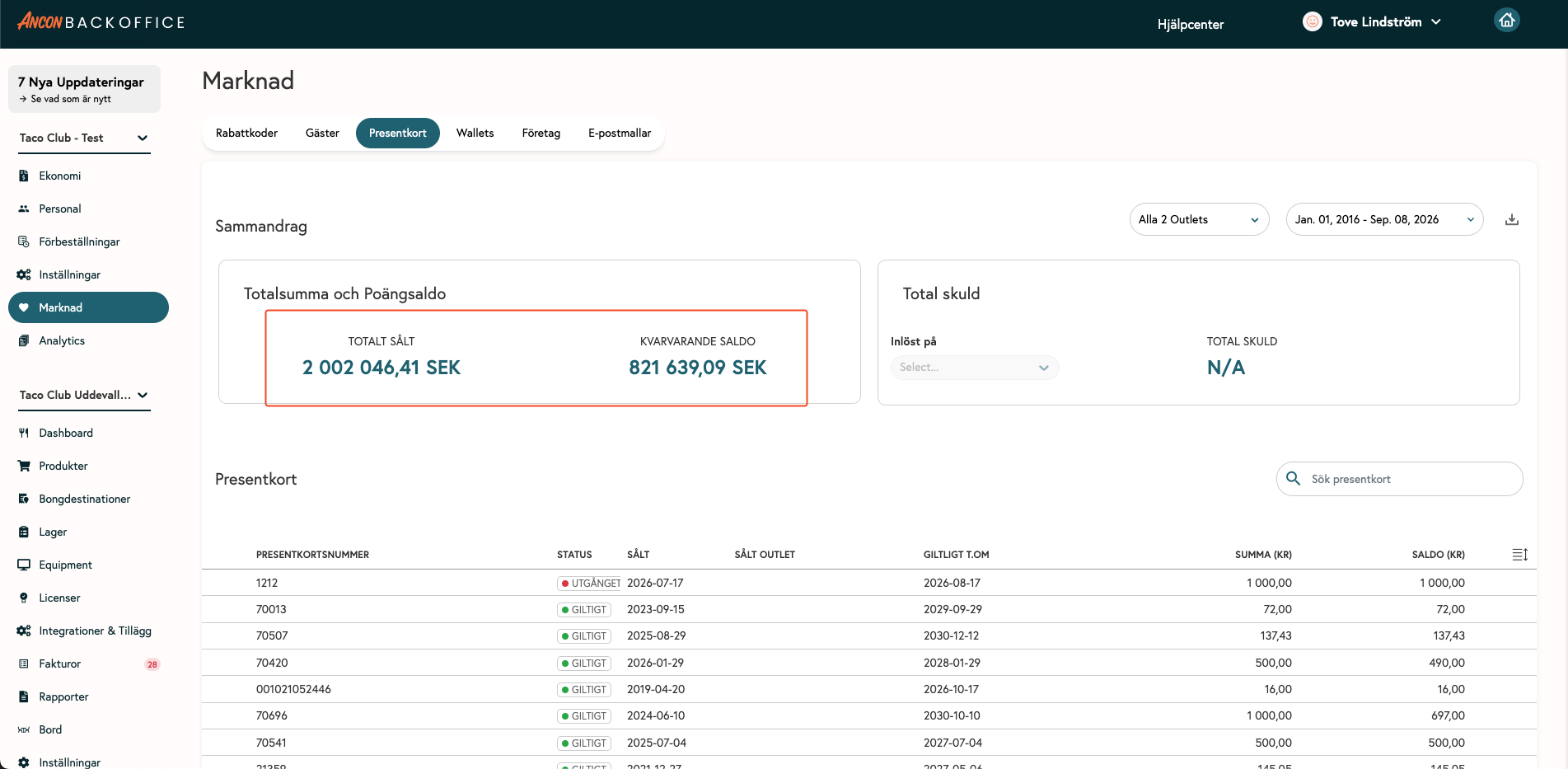
You should use “Remaining Balance” when you want to view the gift card liability for the selected date.
Important note about CSV export: The CSV report always shows the current balance for today, regardless of the date you’ve selected in the date filter. It does not show the historical balance.
For example, if you want to see the gift card liability as of April 30, select that date and check the “Remaining balance” in the summary above the table—not in the CSV report.
Was this helpful?
Still need help? Share an idea