Managing and updating apps
Follow these simple steps to ensure you always have the latest version of your Ancon apps (Ancon POS, Ancon Express, Ancon KDS) installed on your iPad.
1. Launch Hexnode UEM
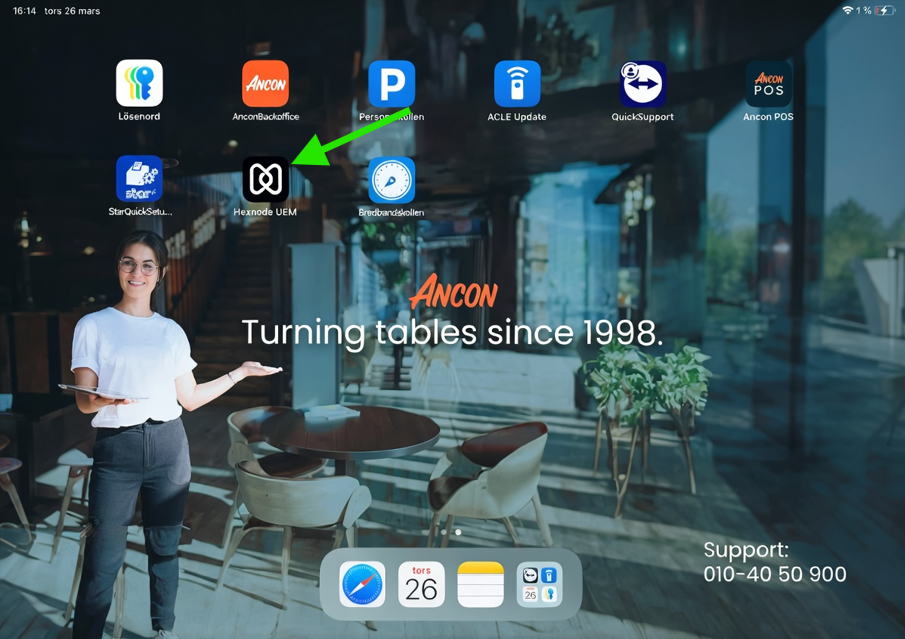
Start by going to your home screen on your iPad. Find and tap the app called Hexnode UEM. This is where all your business apps are managed.
2. Accept permissions
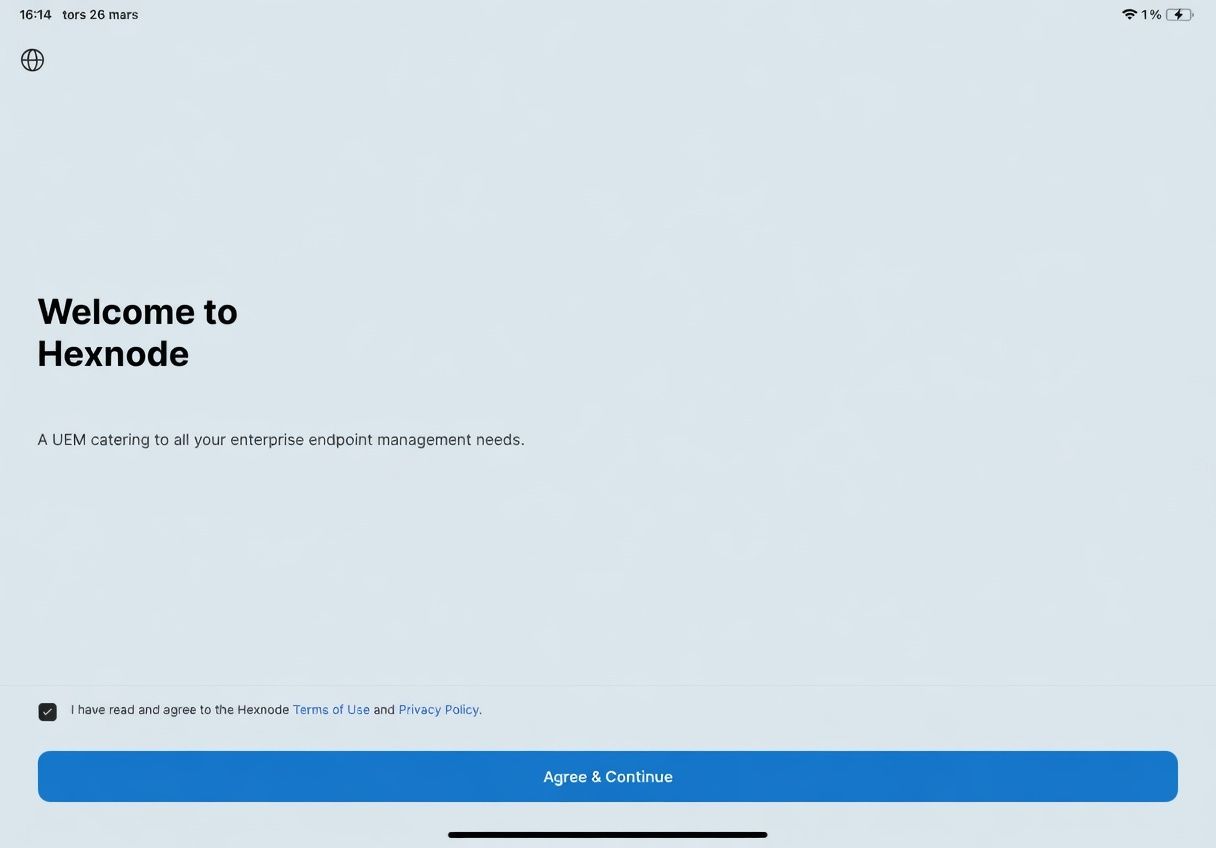
The first time you launch Hexnode UEM, you’ll need to accept the terms of service.
3. Skip the introduction
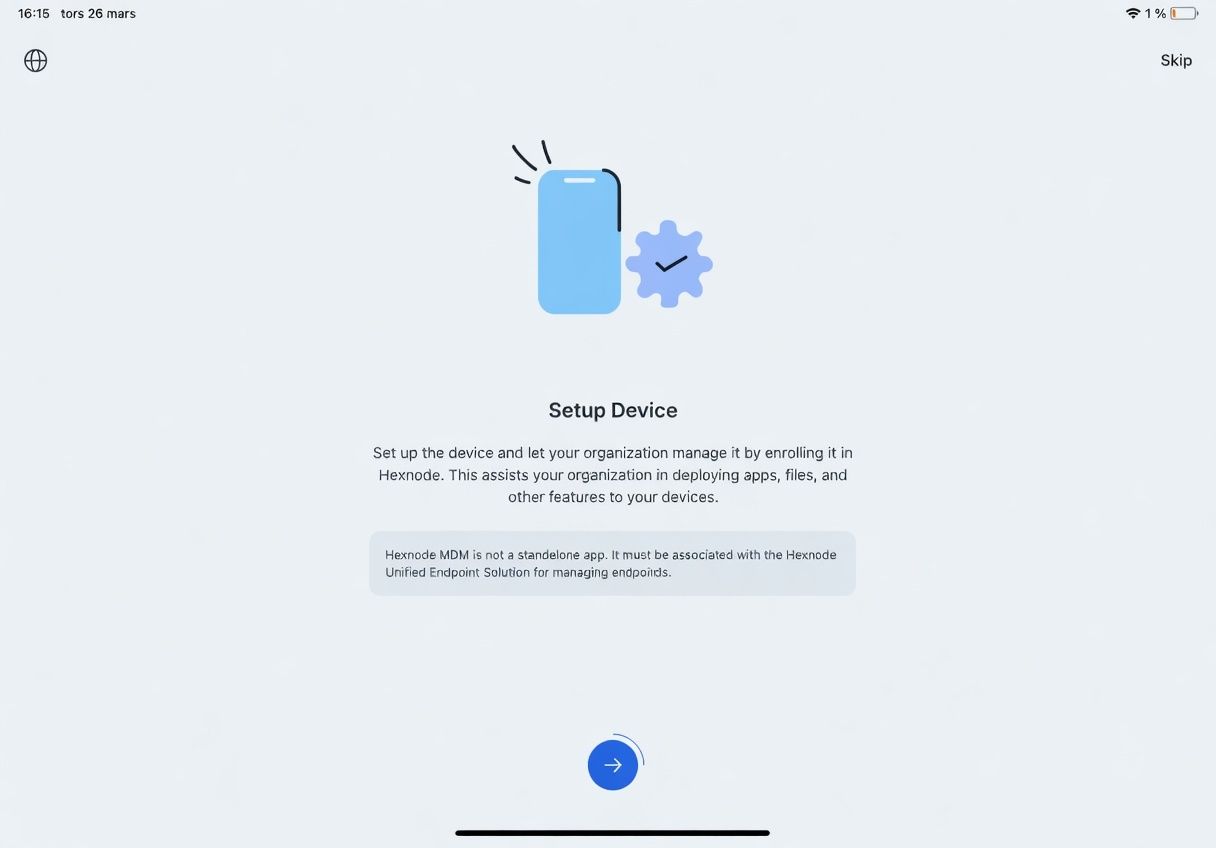
The first time you open the app, a short introductory guide will appear. You can easily skip this by clicking Skip in the top right corner.
4. Grant necessary permissions
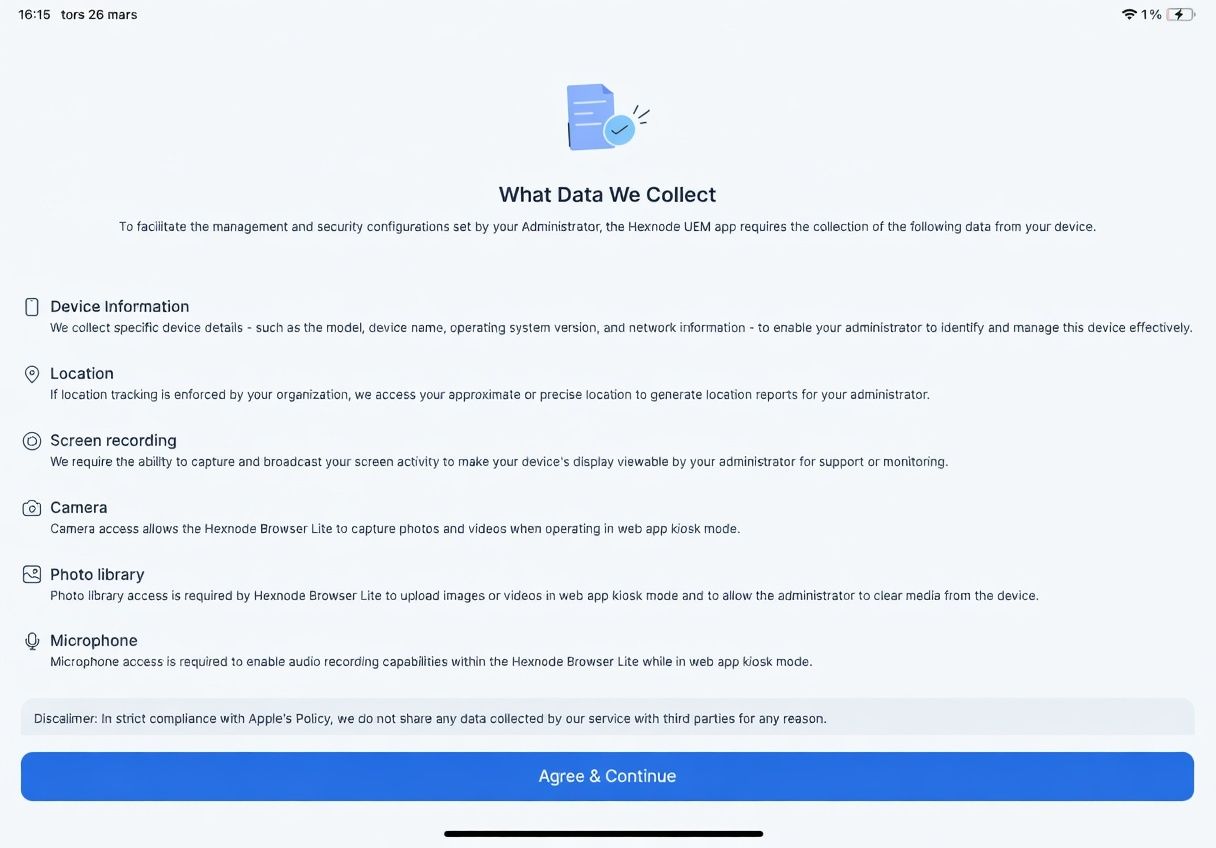
For the app to work properly, it needs access to certain features. When the permissions dialog appears, select to approve them.
5. Navigate to the catalog
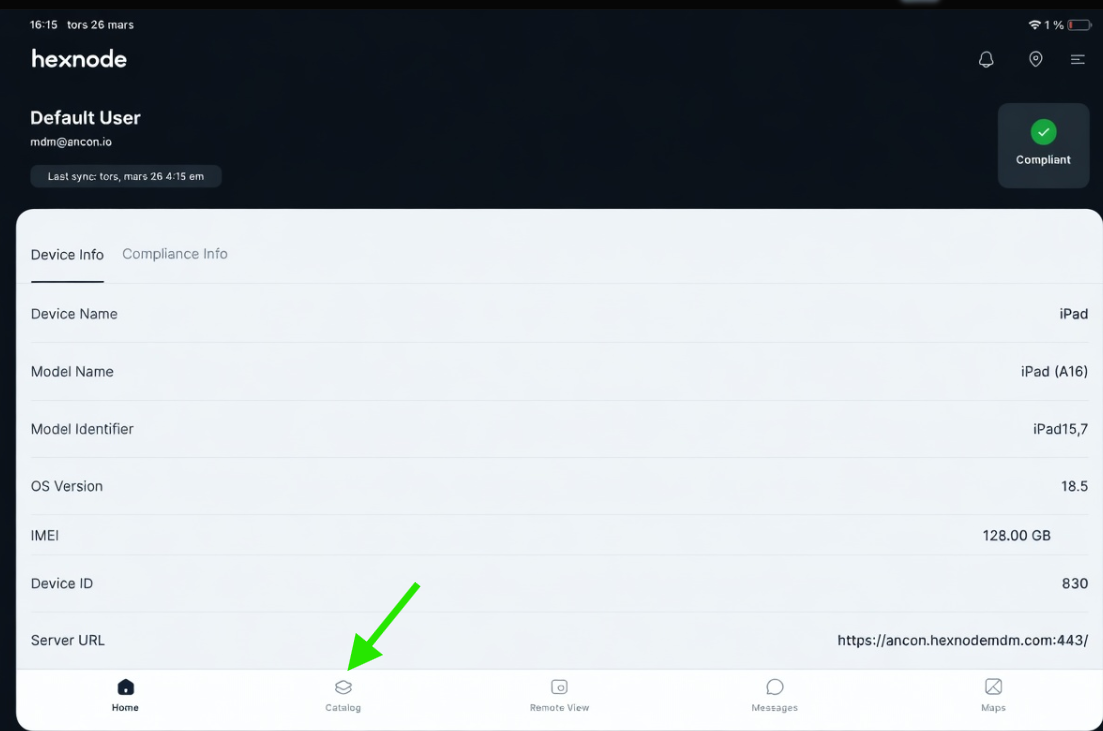
You are now inside the portal. To find your apps, look at the menu at the bottom of the screen and click the icon labeled Catalog.
6. Update your apps
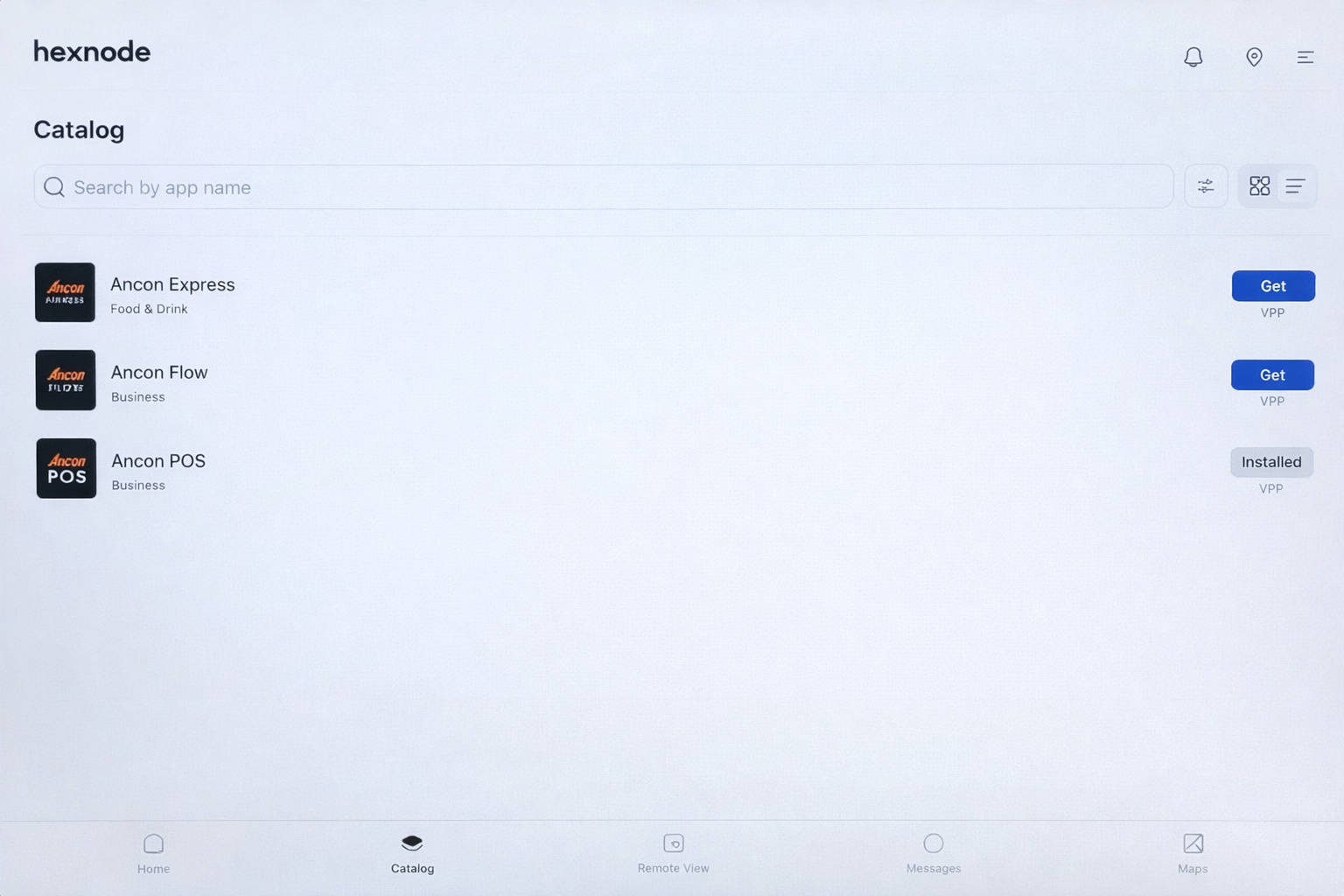
Here you will see a list of all available apps from Ancon. If a new version of an app is available, you will see "Update" to the right of the app name. Click there to start the update.
Was this helpful?
Still need help? Share an idea