Pay by invoice & manage your business
With the Invoice payment method you can easily handle company payments directly at the POS. This guide shows you how to activate Invoice as a payment method in Ancon Backoffice, how to use it in Ancon POS, and how to manage companies and created invoices afterwards.
💡Tip: Check out our guide on how to set up different payment methods to get started with accepting payments via invoice: -guide-
Use Invoice at checkout
When you select Invoice as the payment method, you’ll see two options:
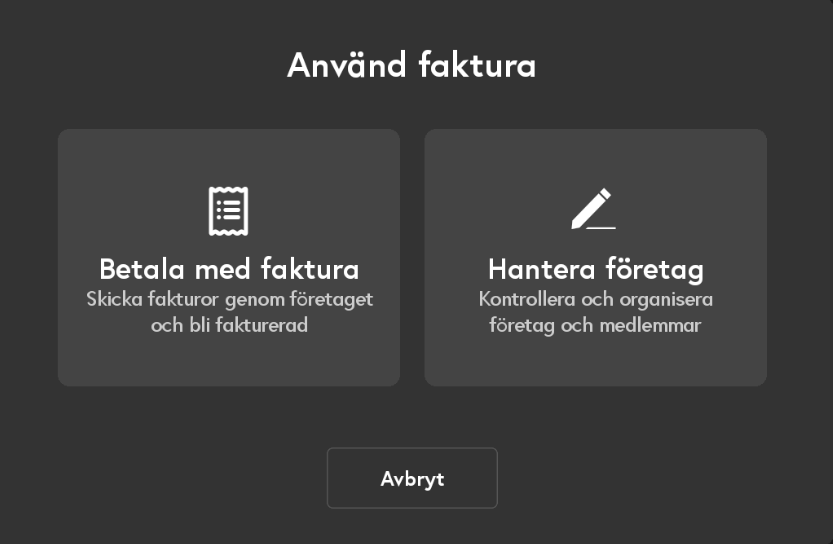
Pay by invoice
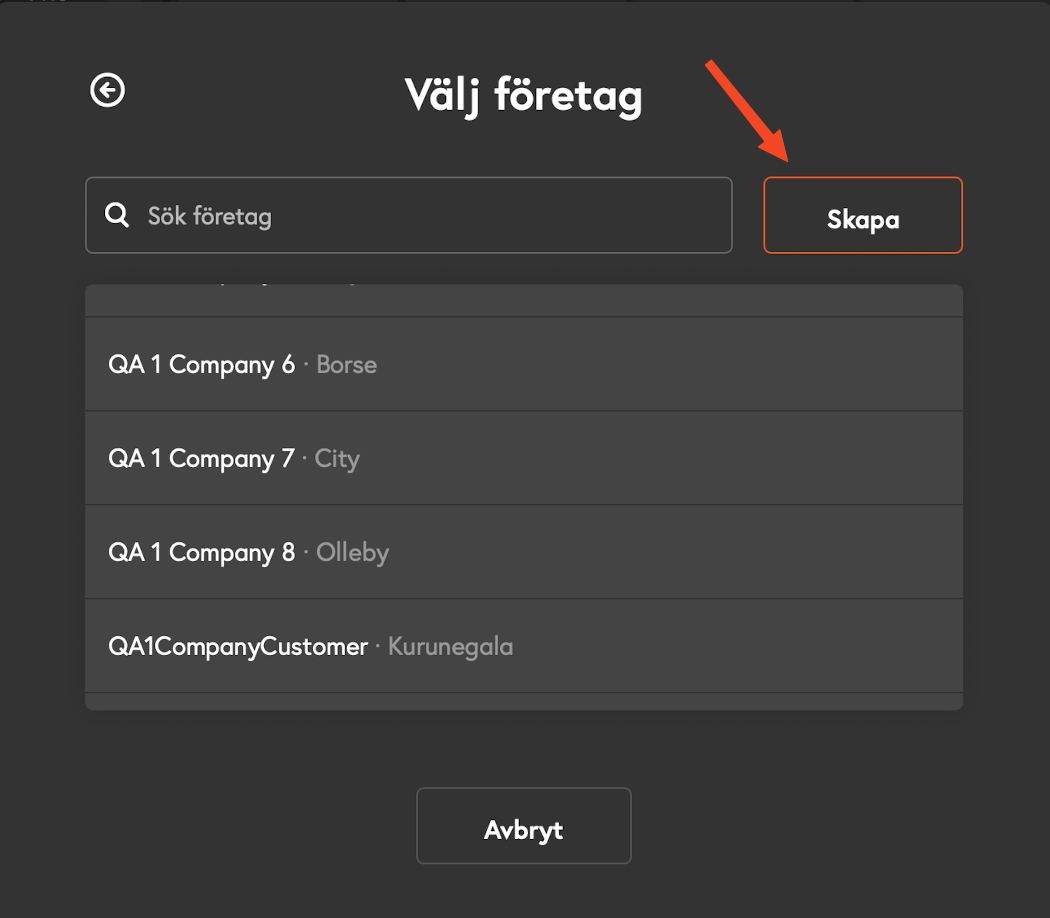
Search for and select the company you want to invoice.
Select which company member should be linked to the purchase.
(Optional) Enter a reference for the invoice.
Tap Invoice to complete the payment.
Once the payment is complete, the invoice documentation is saved and can be accessed via the Backoffice. If you use an integration with an ERP system (e.g., Fortnox or Visma), the documentation is automatically sent there.
💡Tip: You can also create a new company and company member directly from here.
Manage Companies
Use this option if you want to review or update information about a company, such as the address or business ID.
Search for and select the company you want to edit.
Choose whether you want to edit company details or manage members
You can now change the information; when you’re done, tap Save.
Manage created invoices
After payment, an invoice document is created, which you can find in the Backoffice under Invoices. For more information on how to manage invoice documents, [click here]
FAQ
Why don’t I see invoices on my daily report?
Why don’t I see invoices on my daily report?
Under Settings in Ancon Backoffice, you can choose whether to include sales invoices in the standard Z-report.
If this setting is enabled, invoice sales are included directly in the Z-report.
If it is not enabled, invoice sales are instead displayed on a separate tab under Reports > Z-report.
Can I send the invoice directly to the customer from the register?
Can I send the invoice directly to the customer from the register?
No, the POS only creates an invoice template. If you want to automate the entire invoicing process, we recommend using an ERP integration (e.g., Fortnox or Visma).
Can I add a tip to the invoice?
Can I add a tip to the invoice?
Yes, of course!
To add a tip to an invoice:
Create the invoice as usual.
Then go to Previous Orders in the cash register.
Click on the relevant invoice and select Add Tip.
Was this helpful?
Still need help? Share an idea