Download Z-reports or Z-summaries in Ancon Cloud (PDF and SIE)
This guide shows you how to download a Z-report or Z-summary from the Back Office in Ancon Cloud as a PDF or SIE file.
When is this used?
Use this guide when you want to:
save a Z-report/Z-summary as supporting documentation
send a report to accounting/an auditor
import accounting data via SIE
Step by Step
Log in to Ancon Cloud Backoffice.
Go to Reports.
Select Z-Reports.
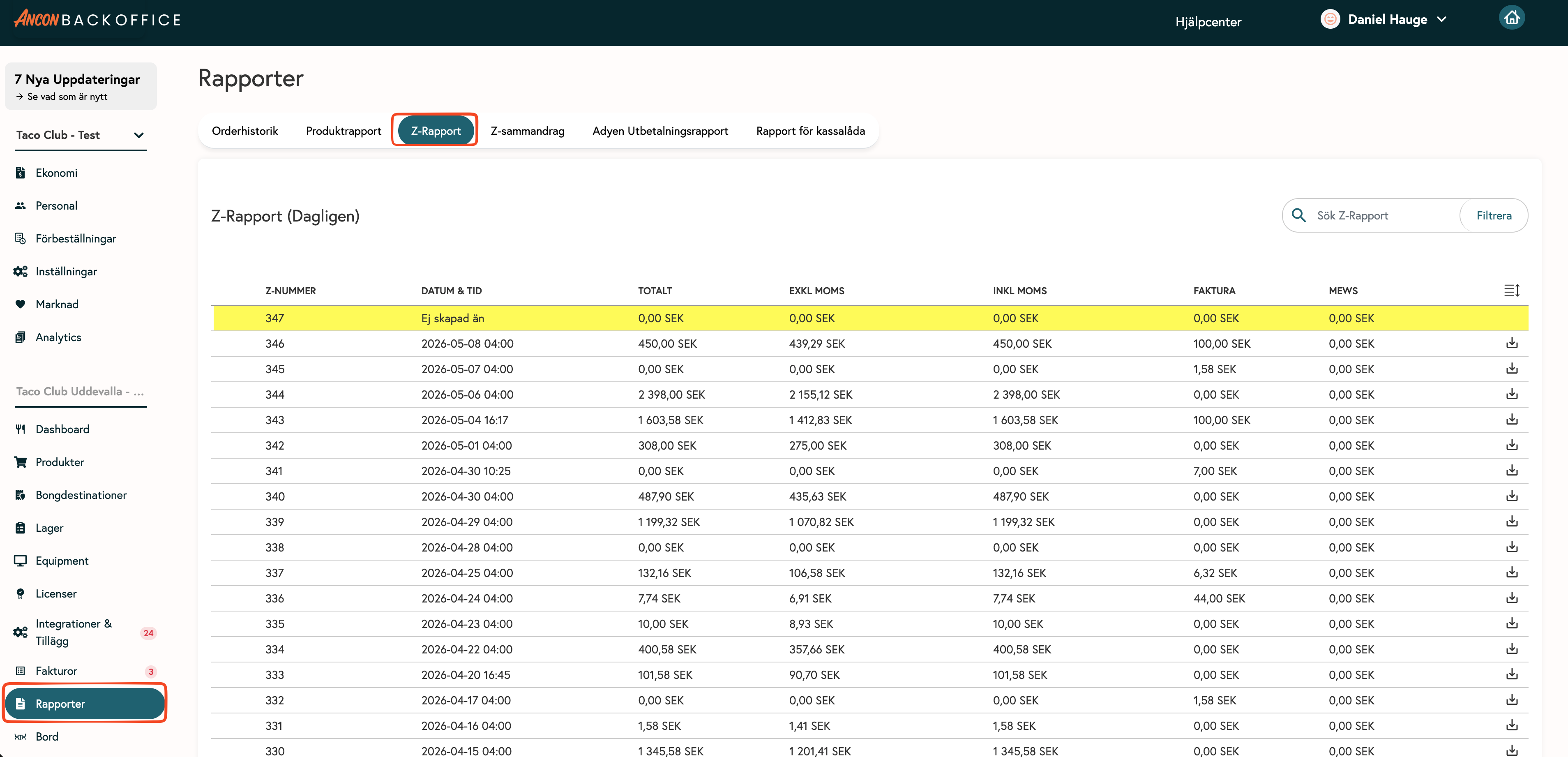
Click on the Z-report you want to download.
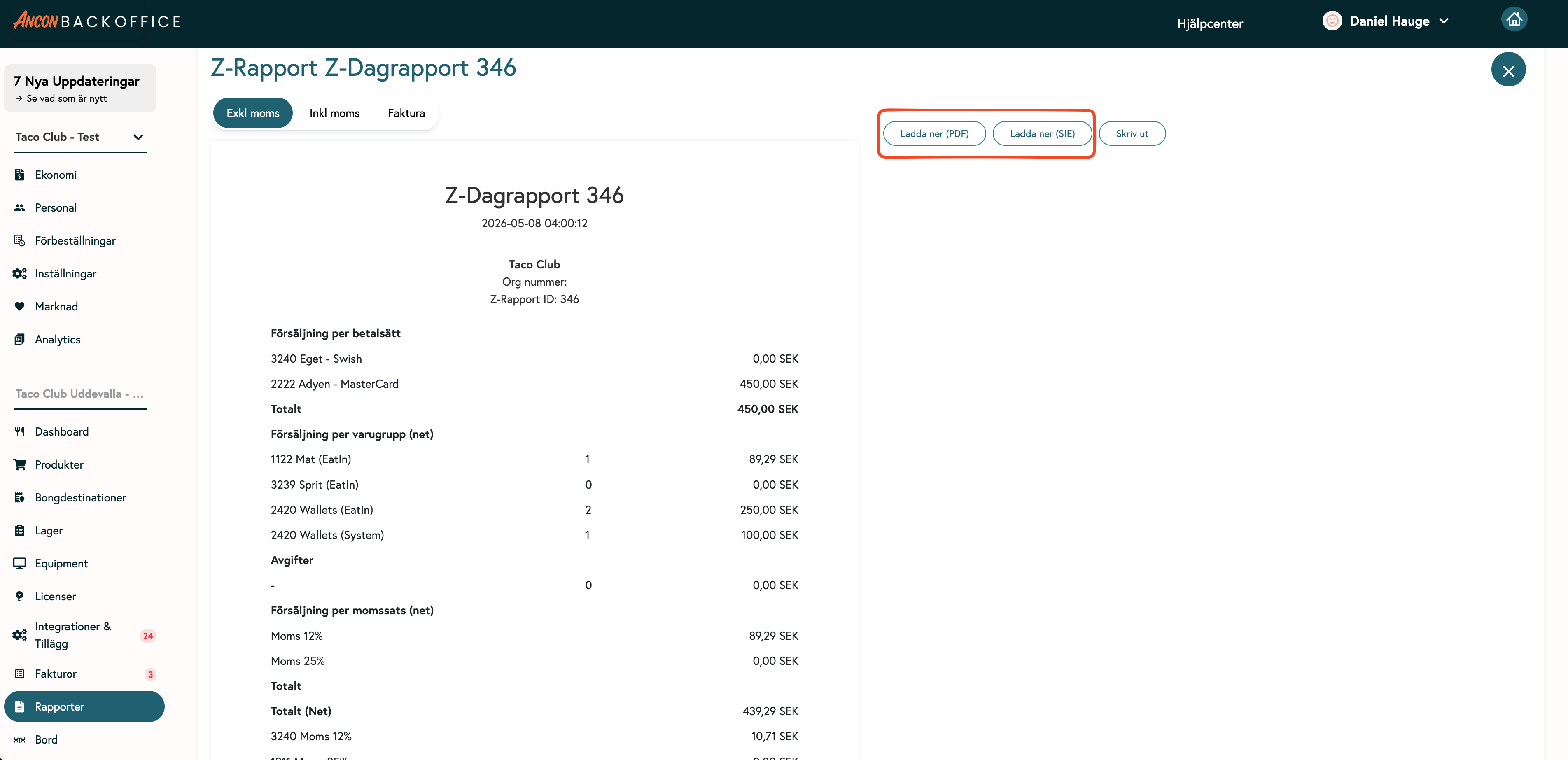
Select a download option:
Download as PDF
Download as SIE
Generate a Z-summary
If you want to generate a summary for multiple Z-reports, use the Z-summary.
Log in to the Ancon Cloud Backoffice.
Go to Reports.
Select Z Summary.
Select the period for which the report should apply.
Click Get Report or the corresponding button to view the summary.
Download or print the report as needed.
Select the correct date and time
Make sure both the date and time are correct before retrieving the report.
Select "From" and "To" for the entire period you want to report on.
For a standard calendar day, use the start and end of the day, for example, 00:00–23:59.
If the sales day extends past midnight, select times that cover the entire sales shift so that the correct Z-reports are included in the summary.
Check the list/summary before downloading the report to ensure that the correct Z-reports are included.
Was this helpful?
Still need help? Share an idea