Optional groups
An option group is a collection of options/modifiers that you can attach to a product to give more opportunity to edit and customize your product for each person
Purpose
The purpose is to make it easier to control which add-ons can be used on which products and to provide more options for controlling price, mandatory selections, maximum quantities, etc.
Example:
Pizza → Add-on group: “Extra toppings”
Add-ons: Extra cheese, pepperoni, olives, etc.
Hamburger → Add-on group: “Choose sides”
Add-ons: French fries, Sweet potato fries, Salad
Drinks → Option group: “Ice & lemon”
Options: Ice, Lemon wedge
Create Option Groups
To create an add-on group, first navigate to Back Office > Products > Add-on Groups > Click “Create New”.
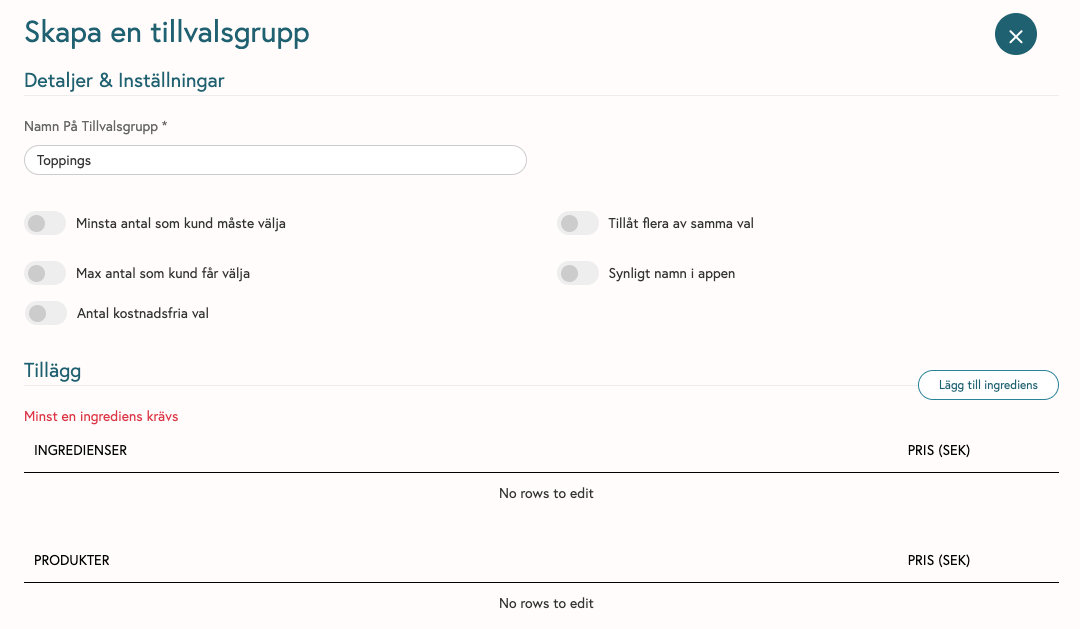
Step-by-step guide to how the different options work:
Settings for the add-on group
Name: e.g., “Select Size,” “Toppings,” “Sauce,” “Side Dishes.”
Min. & max. number of selections
Min 0, Max 3→ Up to three selections, no requirement.Min 1, Max 1→ The user must select exactly one (e.g., “Select Size”).Min 1, Max 3→ At least one selection, but up to three (e.g., “Select at least one sauce”).
Allow the same option multiple times
Control whether the same add-on can be selected multiple times for the same item (e.g., double/triple cheese).
Pricing strategy for add-ons
Add-ons can be:
Free
Additional charge (e.g., +$1 for extra cheese)
Once the add-on group is created, the next step is to link it to the products it will affect:
Navigate to Products.

Click on the product to be updated.
Select either Go to Advanced Settings or Ingredients & Add-ons.
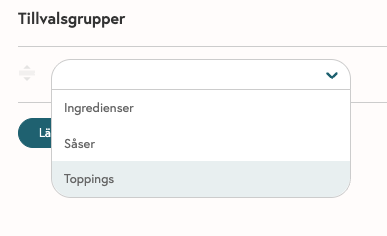
Click Add option group.
Select the newly created option group and save the changes.
The option group is now linked to the product and will appear wherever the product is used.
Was this helpful?
Still need help? Share an idea