Integrate Ancon with the People Center
By connecting Ancon to Personalkollen, you can automatically send sales data, tips and staff costs directly to your HR system. This gives you a complete picture of your business finances and facilitates everything from scheduling to payroll management.
1. Preparations and Agreements
Before you begin, you need to ensure that you have the right prerequisites:
Agreement: Verify that you have signed an agreement for the Personalkollen integration. If not, contact your CSM or Ancon Support.
Access: You need login credentials for Personalkollen with administrator rights to retrieve integration keys.
2. Retrieve keys from Personalkollen
For Ancon to communicate with Personalkollen, you need to retrieve three specific codes (keys) from your Personalkollen account:
Step A: Retrieve Cash Register Key & Token
Log in to Personalkollen.
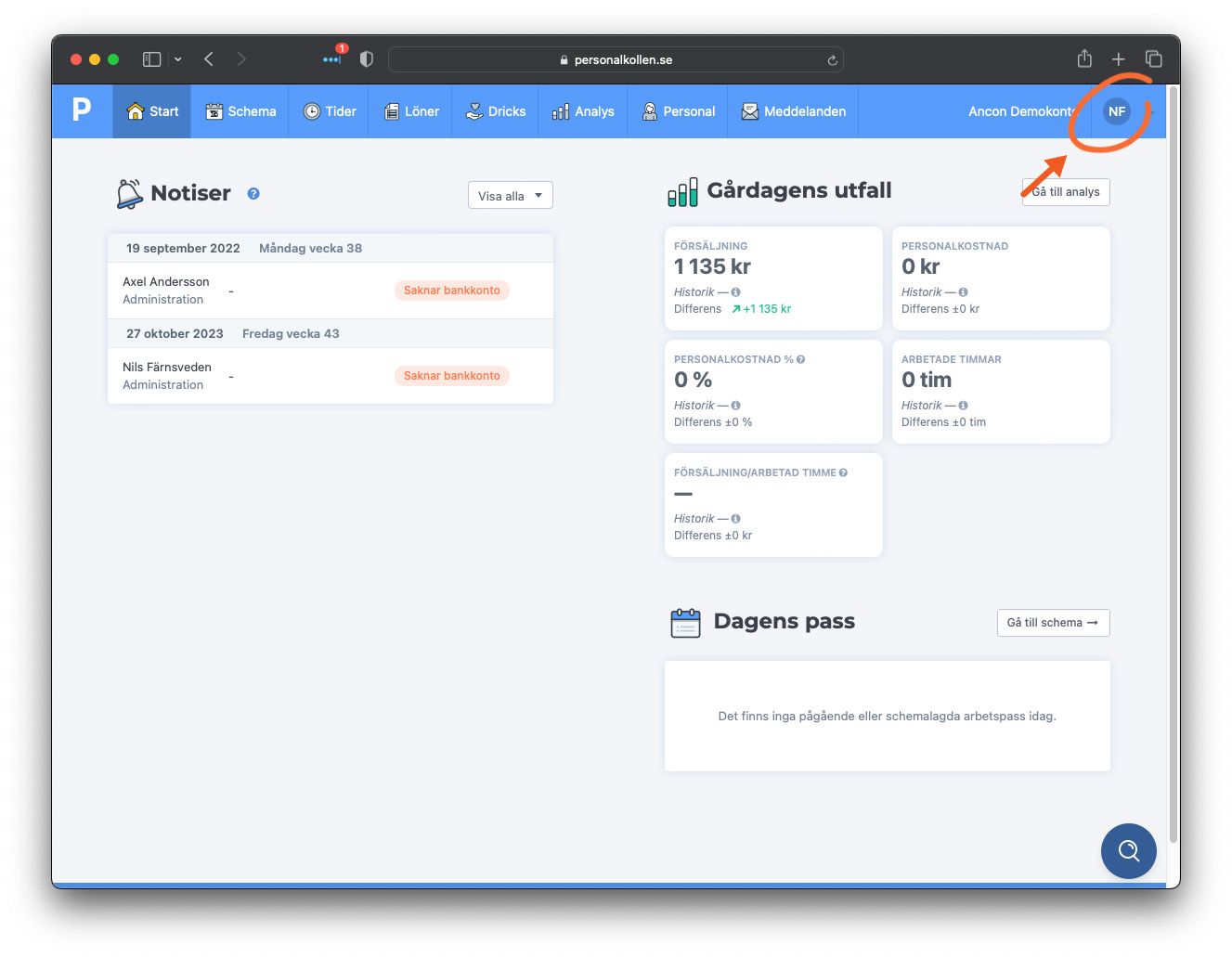
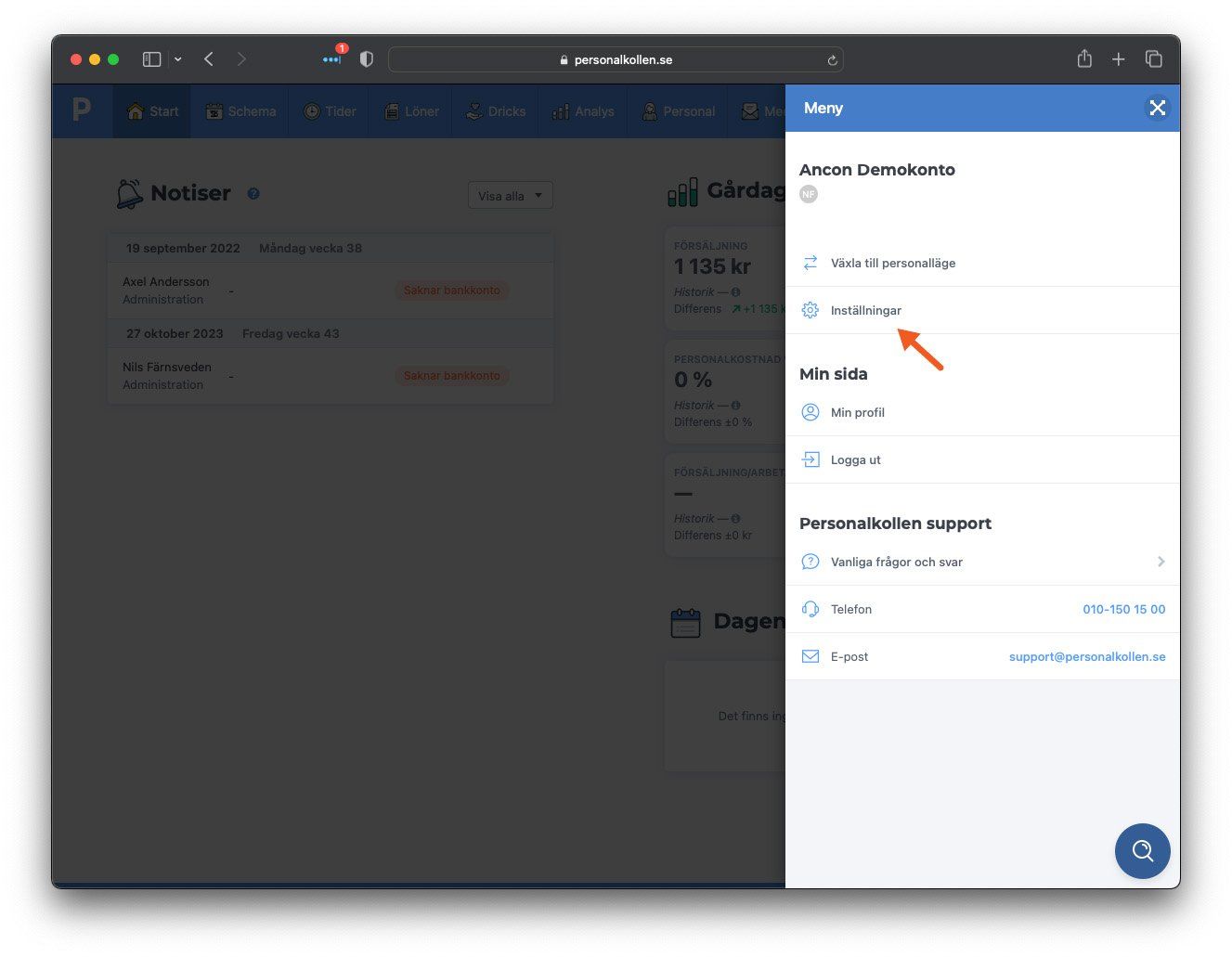
Click on your user icon (top right) and select Settings.
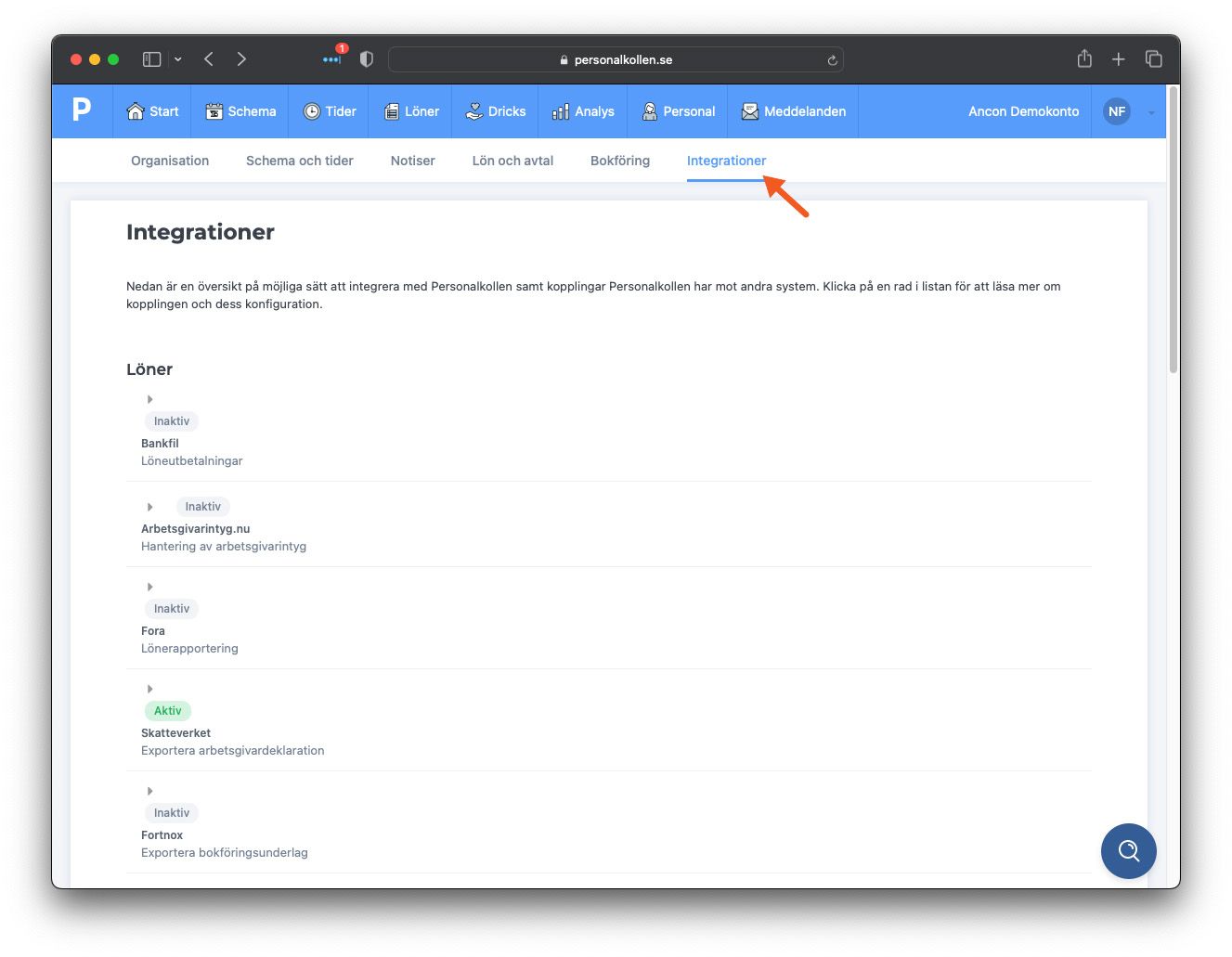
Go to the Integrations tab and scroll down to Cash Register Connections.
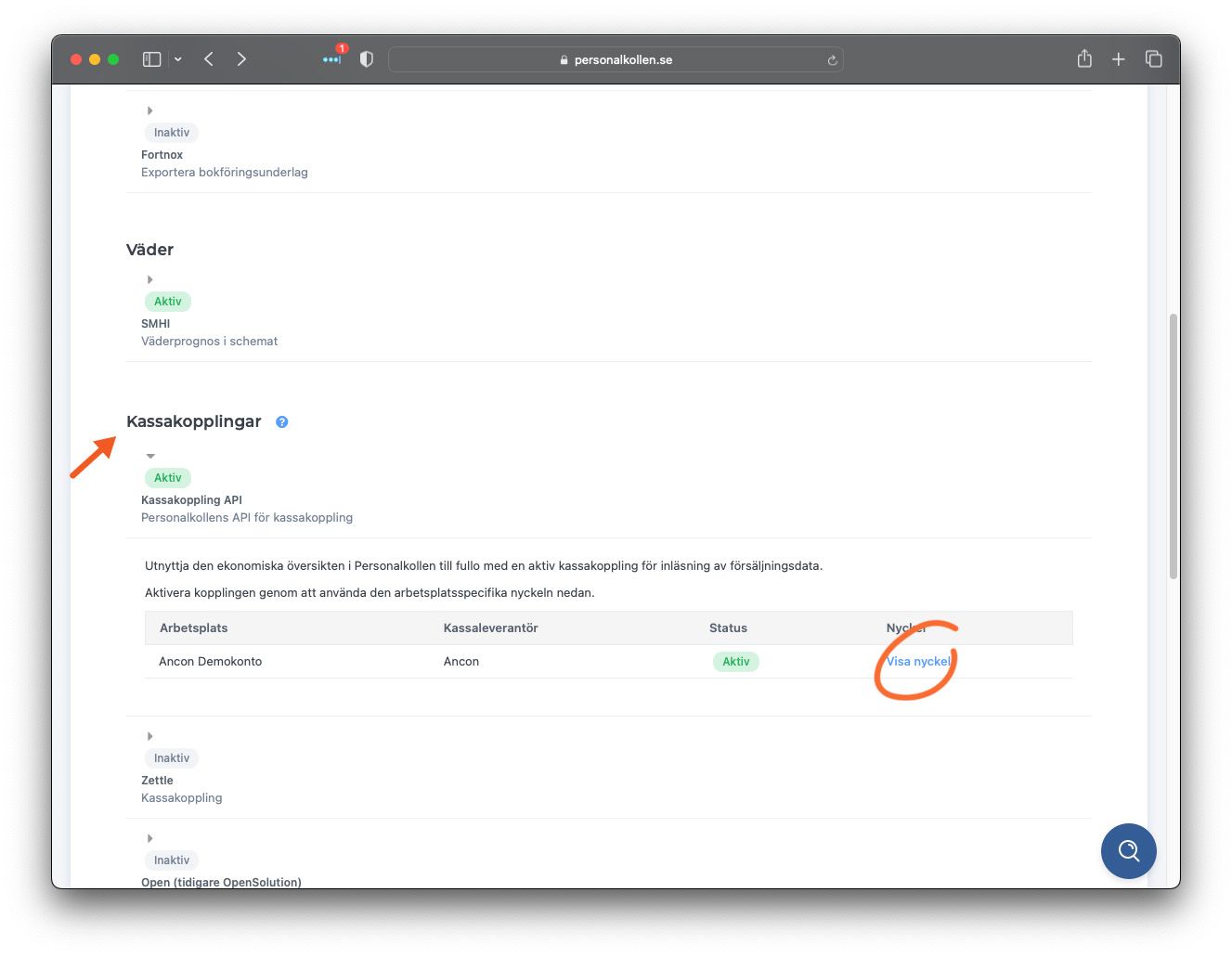
Click the arrow for Cash Register API. Click View Key and copy the code. This is your Cash Register Key.
Scroll a little further down the same page to the Export API section. Copy the key displayed there. This is your Token.
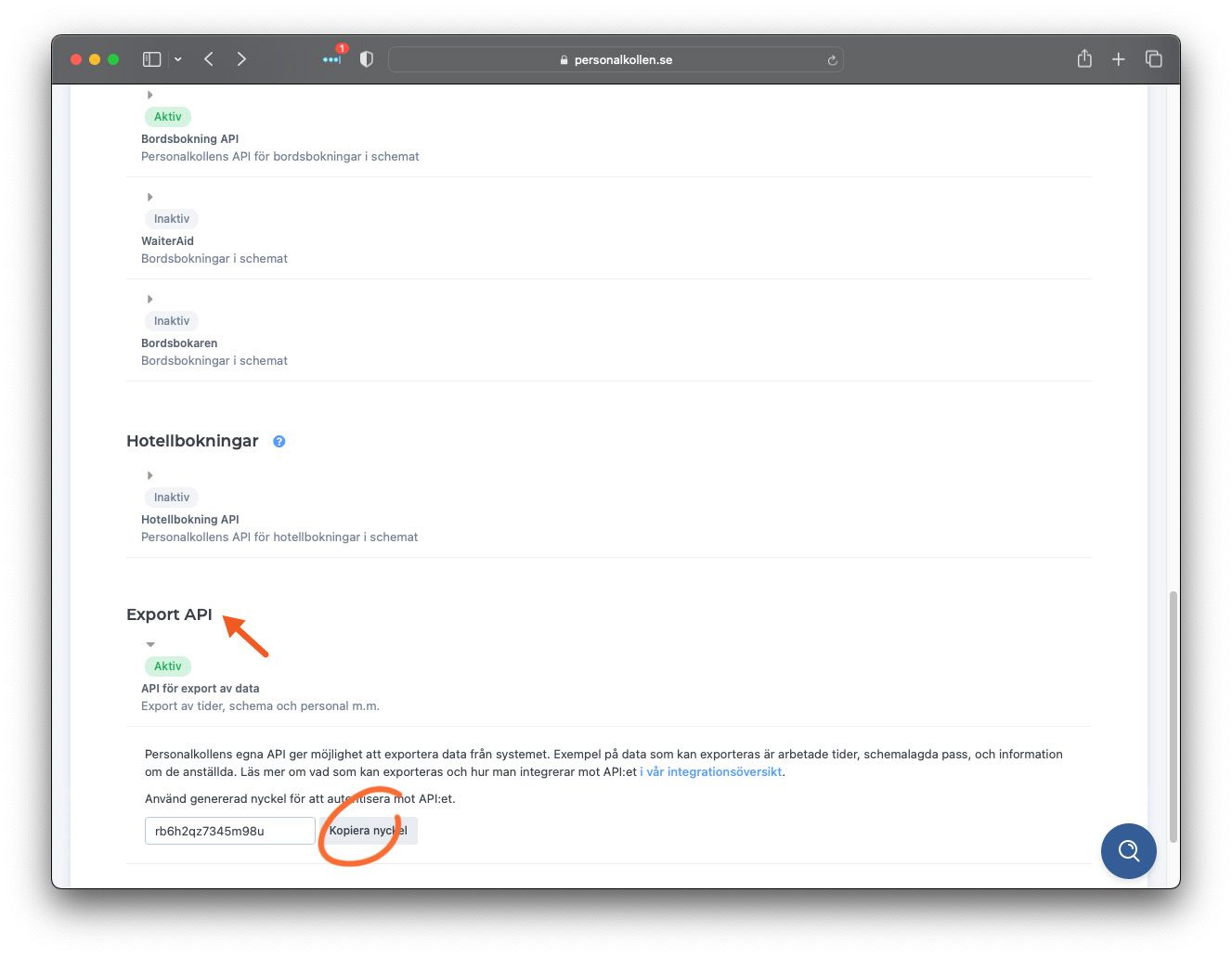
Step B: Retrieve Workplace ID
Go to the Organization -> Organization menu in Personalkollen.
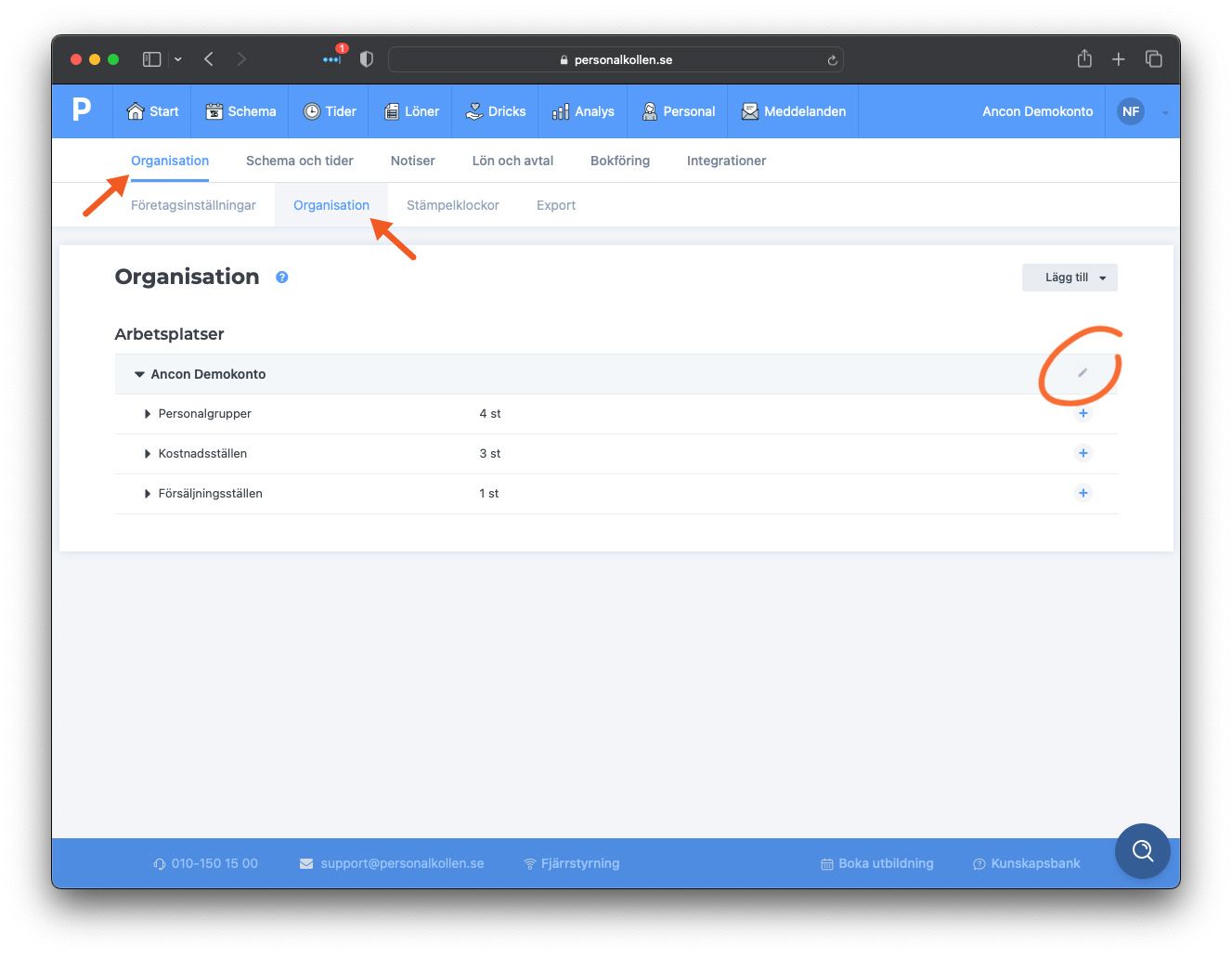
Click the pencil (edit) icon next to the relevant workplace.
Now look at the web address (URL) in your browser. At the end of the address, there are four digits.
Example: .../workplace/edit/1234

Copy these four digits. This is your Workplace ID.
3. Enable the integration in Ancon Cloud
Now that you have all the keys, it’s time to paste them into Ancon:
Log in to Ancon Cloud.
Navigate to Integrations & Add-ons -> Personalkollen.
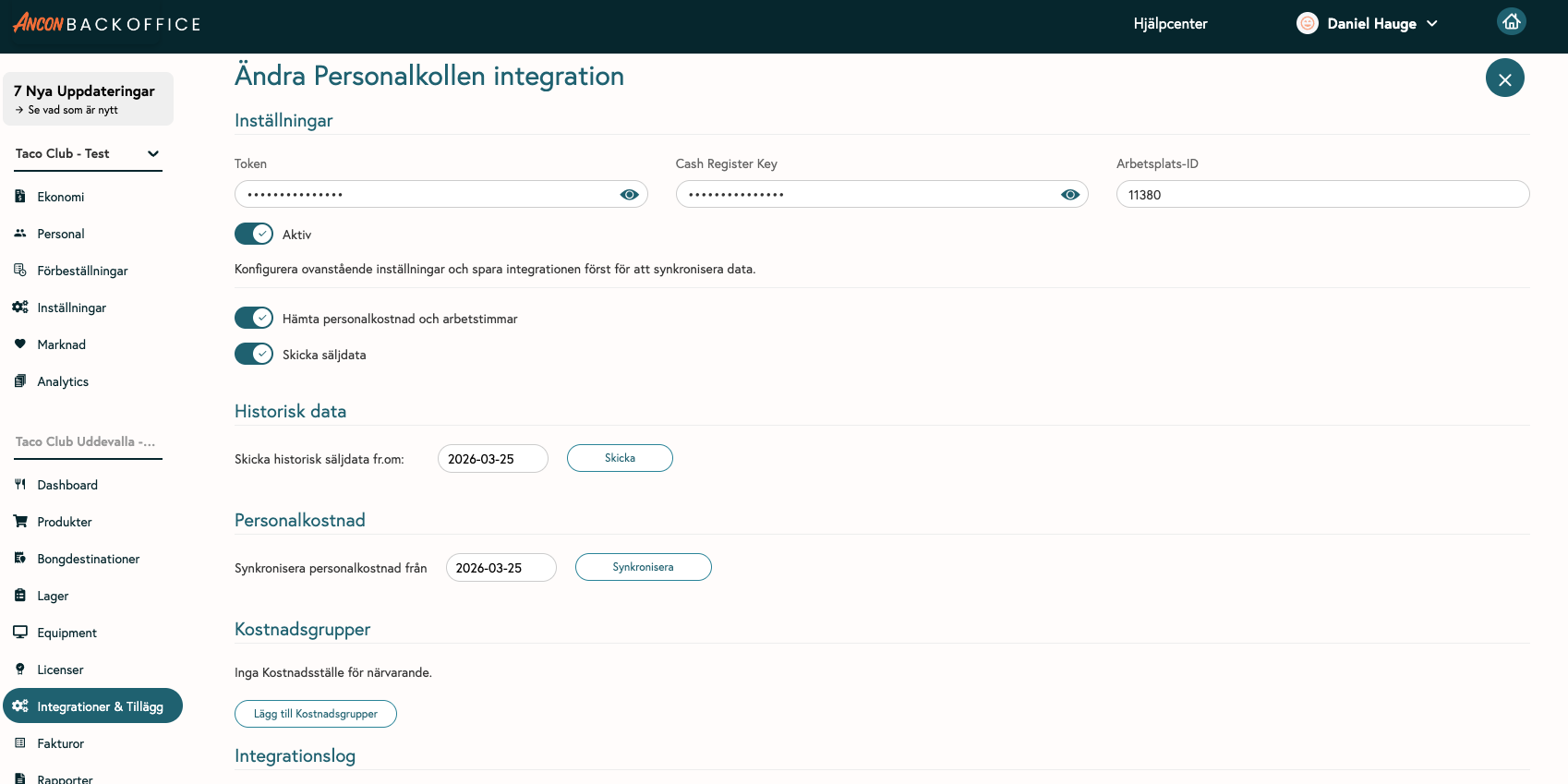
Paste the three codes into their respective fields:
Token (Export API)
Cash Register Key (Cash Register API)
Workplace ID
Check the box next to Send sales data.
Click Save to activate the connection.
Was this helpful?
Still need help? Share an idea