Split and use
This guide describes the different ways you can split a bill - either by moving products to a new bill, splitting the bill equally, or splitting individual products.
Open the Split View
To get started, enter all items as usual in the bill view.
When you're ready to split the bill, click the Bill button to open the Split View.
You will now see the original bill on the left and a blank space for a new bill on the right. Choose one of the methods below to split the bill:
Move items to a new bill
Use this method when a guest wants to pay for specific items.
Simply click on the item in the left bill that you want to move.
The item will automatically be moved to the new bill on the right.
To undo, simply click the item again and it will be moved back.
Repeat for all items the guest is paying for.
Split the entire bill evenly
Use this method when a group wants to split the total cost evenly.
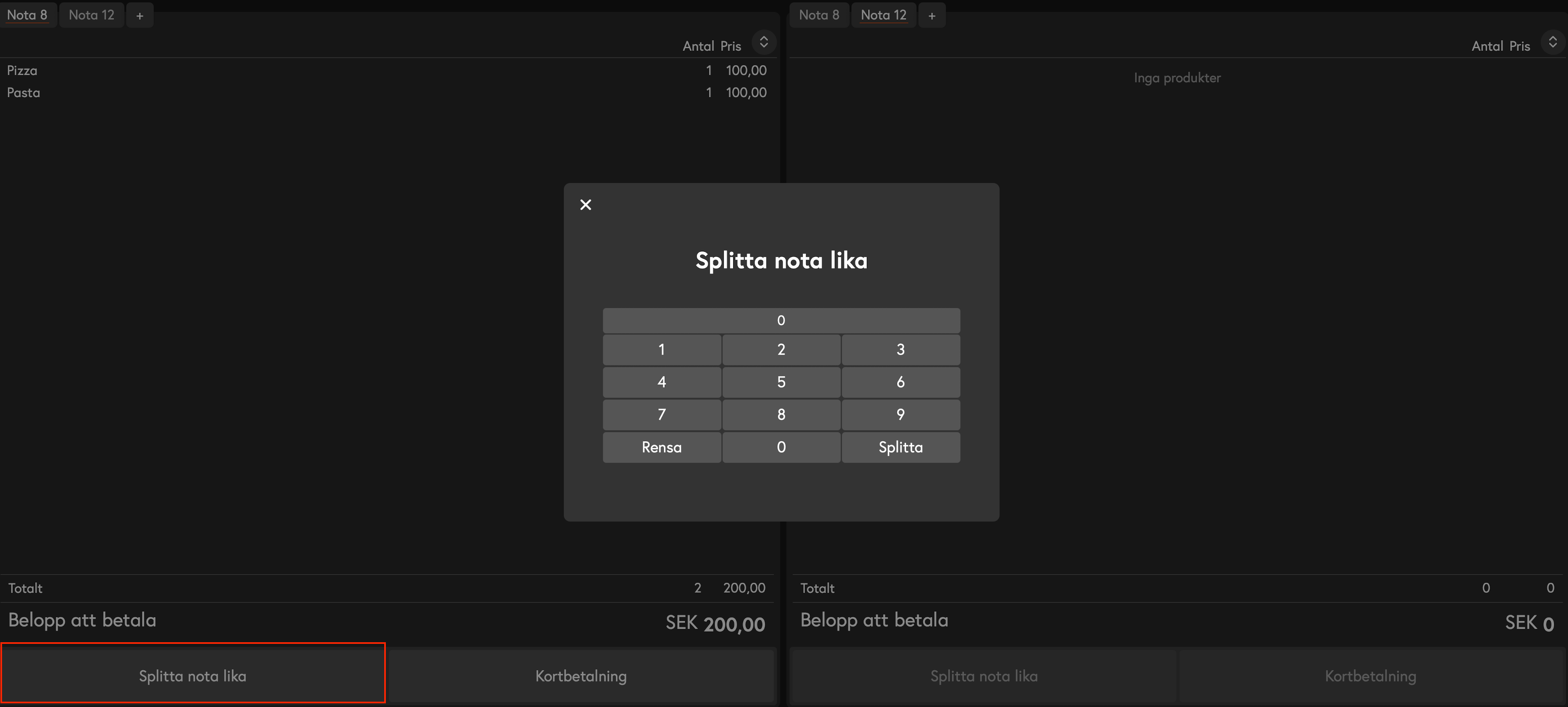
In the split view, click the Split bill equally button.
A box appears where you can choose how many parts the bill should be split into (e.g., 2, 3, 4, etc.).
Enter the number and click Split. The bill is automatically split into new bills with equal amounts.
Split an individual item
Collect payment after splitting
Once you have split the bill as desired, you can accept payment directly from the split view.
Click Card Payment (or the corresponding shortcut) under each bill to accept payment.
If a guest wants to use a different payment method, click Back at the bottom left to return to the regular payment view and select the desired payment method there.
For more information on accepting payment, see the guide
Was this helpful?
Still need help? Share an idea