Overview: Products
Here we go through the basics of product management. The guide covers everything from how to find your way around the list to how to configure the settings that control how your products work and appear in the system.
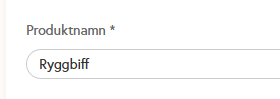
Product name
The product name is the name that appears on the product in the POS, on the order slip sent to the kitchen, and on the receipt given to the guest.
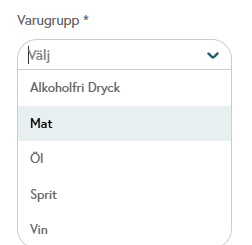
Product group
Product groups are used to categorize different products into groups based on VAT and type. Some of the most common product groups are "Food," "Beverages," "Beer," "Wine," and "Spirits." Product groups are also presented on the Z report and are used to make it easier to categorize your accounting.
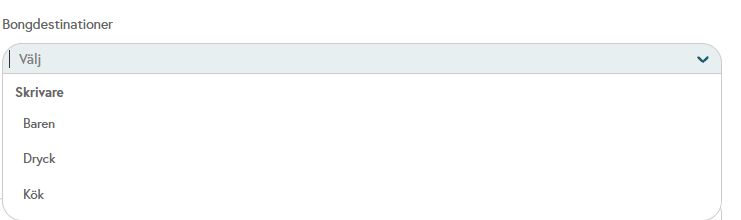
Bong destination
Bong destinations are used to determine which destination(s) the product should be bonged to. A bong destination is in turn configured to a printer or KDS (kitchen display) where the product and order will be presented when ordering.
Some of the most common delivery destinations are "Kitchen," "Bar," and "Pickup."
Read more about delivery destinations here <link to guide on delivery destinations>.
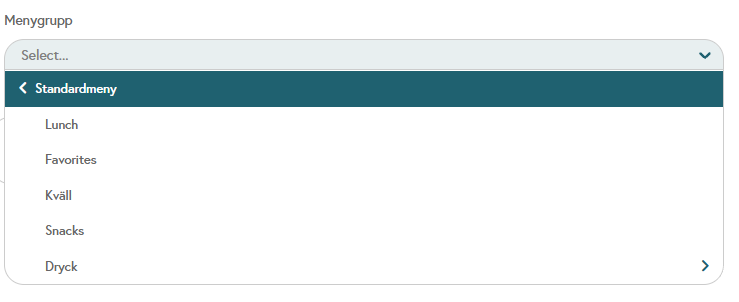
Menu group
Menu groups are used to structure a categorized menu and thus group your products in a way that works for both the staff behind the cash register and for guests via express or online customers via Ancon orders. They function as headings for where to place the various products you sell and can thus control that food is displayed with food and drinks are displayed with drinks, etc.
Some of the most common menu groups are "Lunch," "Evening Menu," and "Bar."
Product types
The product type determines how the product works at the checkout. Below is a brief guide to the different types you can choose from.

1. Standard product
Used for regular items with a fixed price, e.g. Coffee, Burgers, Cola.
The price is set directly in the product.
No additional settings are required.
Used when the same drink is sold in different volumes.
Used when the same drink is sold in different volumes.
You create your product (e.g., "House wine") and then enter the price for a glass and a bottle, as well as how many glasses each bottle contains (e.g., "Glass $9.50" / "Bottle $39.50").
The checkout will then show the choice of glass or bottle at the time of sale.
💡Tip
Perfect for wine, beer, or other beverages that come in multiple serving sizes.
3. Centiliters (cl)
Used for spirits where the price is determined by the number of centiliters.
You enter a price per cl (e.g., $10/cl), which is then calculated automatically. You can also set a base price that is always applied first before calculating the price per cl.
Then click on the types of cl you want to display at checkout.
When selling, you will then see these options and can choose directly how many cl to sell.
⬇️ Example
4 cl Whiskey → $4
6 cl Whiskey → $6
4. Weight
Used for products that are weighed, such as loose candy, meat, or salad.
You enter the price per kg.
The cash register records the exact weight and calculates the total amount.
⬇️ Example
25 SEK/kg → weighs 0.3 kg = 7.50 SEK
5. Time-based product
Used to charge by time, e.g. boules court, billiards or karaoke.
You set the price per minute.
The cash register starts and stops the time when used.
⬇️ Example
5 SEK/minute – payment based on actual playing time.
6. Multi-product
A combination of several products sold as a package.
You add several existing products to your multi-product. Also called "Sub-products."
You then have the option to set a base price or price each individual sub-product. This is so that you can specify different VAT rates in order to mix 25% and 12% in the same product.
The checkout then combines everything into a total price, which can then be sold as a product in POS.
⬇️ Example
: "Lunch menu" = (1 main course + 1 drink + 1 coffee)
Availability
The different availability settings control where the product is displayed.

POS means that the product is visible in your POS app. This is step 1 in being able to use your cash register and your products, whether it's over-the-counter sales, at the table, or directly on your mobile phone.
Blocked means that the product can no longer be sold regardless of where it is displayed. This is used to easily stop the sale of a product that, for example, is no longer in stock or simply can no longer be sold. This also means that you never have to delete the product from a menu group. Simply block the product until it can be sold again.
Express means that the product is now available in all express checkouts. This way, your POS menu and Express menu can be completely different even though it is the same product being sold.
Online Order makes the product available in our online environments, such as Ancon Order. Similar to Express, this makes it possible to obtain comprehensive statistics for the same product, regardless of the environment in which it is sold.
Open API makes the product available in third-party programs. This is used by our customers who, with the help of our open API, have created their own versions of online apps to control their sales.
Advanced settings
Advanced settings are used to further configure the products in a way that suits your specific restaurant.

Variants
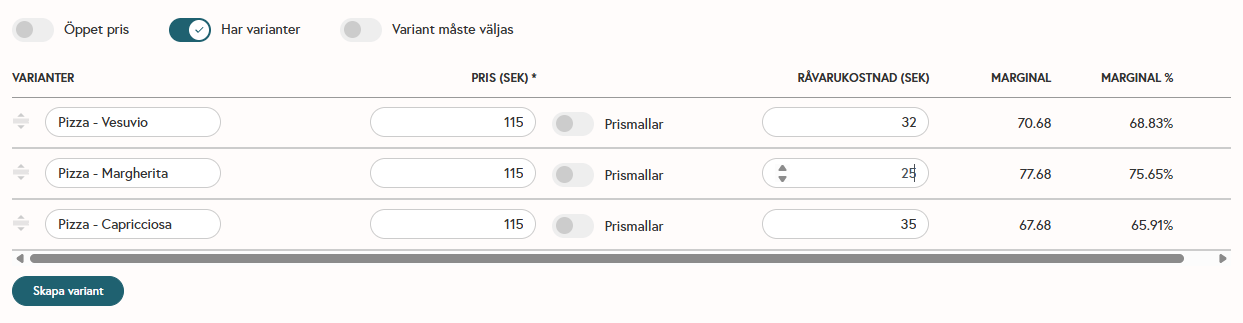
Variants function as an additional option within a product. This makes it possible to have different choices of the product each time it is sold. After activating variants, you will see that the name and price disappear and instead you will see an empty field where you can write the name of the first variant. Some common uses are different flavors or accessories.
Each individual variant can have its own name and price, which makes it possible to build different menus within the same product.
Ingredients
Ingredients are used to show what each product contains when ordering online and give guests the opportunity to edit their own product as needed.
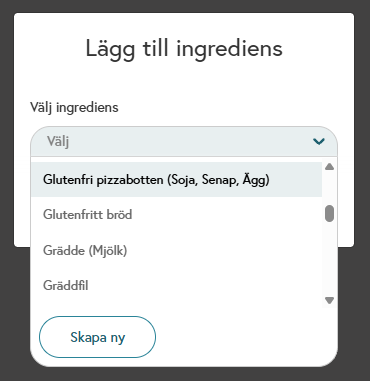
Ingredients are created in the back office under "Products" > "Ingredients." Each ingredient needs a name to be created, but can also be linked to a price. This is so that they can be linked to an optional group. This makes it possible to offer extra options for an additional fee, such as extra protein or extra sauce.
Optional groups
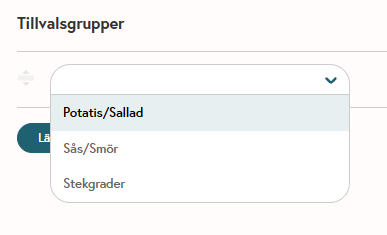
Optional groups are used to offer guests additional ingredients in connection with a purchase. An optional group is created in the back office, where you add ingredients, link them to a price, and then link the entire optional group to a specific product (or several).
When a guest purchases the product in an express or online, the guest is given the opportunity to choose any options. The ingredients included in the option group are then presented, making it possible to offer the guest a structured way to build their own product.
Upsell groups
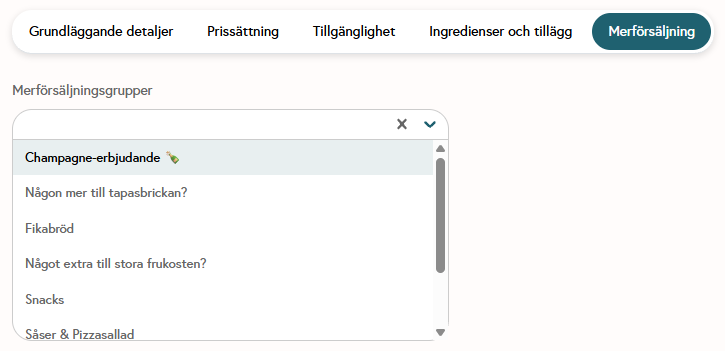
Upsell groups work in a similar way to optional groups in that they allow you, as a restaurant owner, to link other products as offers to your products and thus be able to recommend those that work well together. Upsell groups are created under "Products" and require a name and at least one product to be created.
FAQ
Is it possible to change the product type afterwards?
Is it possible to change the product type afterwards?
No, once you have created a product with a certain product type, the product is locked to that type of product. This is because it controls how the system handles all values in the product. If you need to change the product type, you need to create a new product.
Why is my multi-product not visible?
Why is my multi-product not visible?
The most common reason why a multi-product is not visible in the checkout is because one of the sub-products does not have the status "Show in checkout (POS)" activated. This must therefore be activated on all sub-products for the multi-product to be visible and available.
Details
Details
Was this helpful?
Still need help? Share an idea