Integrate Ancon with Fortnox
This guide will help you connect your Ancon POS system with Fortnox for automated accounting and smooth invoice processing.
1. Preparations and Agreements
Before you begin the technical integration, two things need to be in place:
Agreement: Ensure that you have signed an agreement for the Fortnox integration. If this was not done when purchasing the POS system, contact your CSM (Customer Success Manager) or Ancon Support.
Chart of Accounts: For the integration to work correctly, account numbers from Fortnox must be entered into Ancon Cloud in the following locations; see the guide: Configure account number
VAT
Product Categories
Payment methods
2. Activate the connection
Once the preparations are complete, follow these steps to establish the connection:
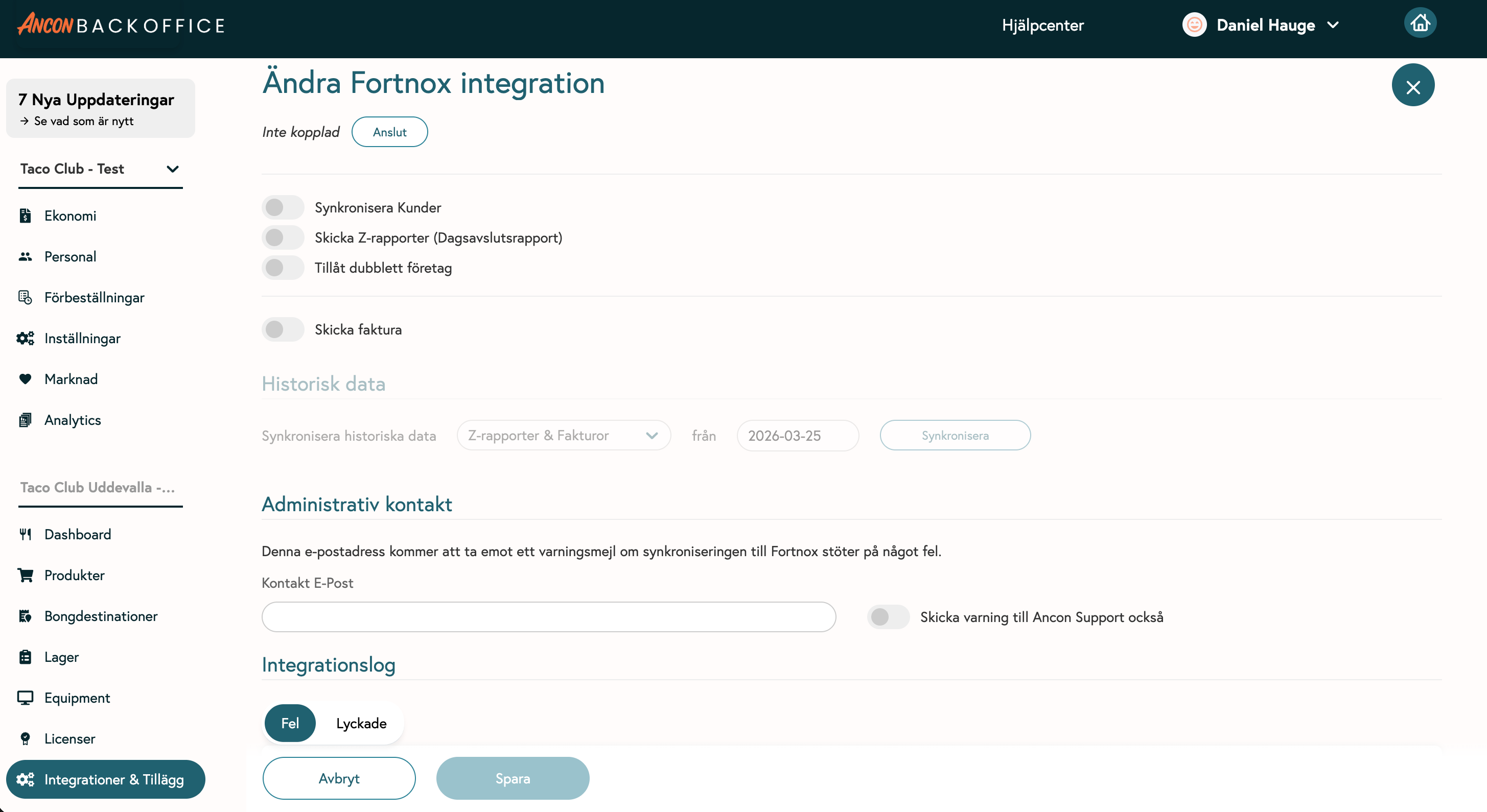
Log in to Ancon Cloud.
Navigate to Integrations & Add-ons -> Fortnox.
Click Connect.
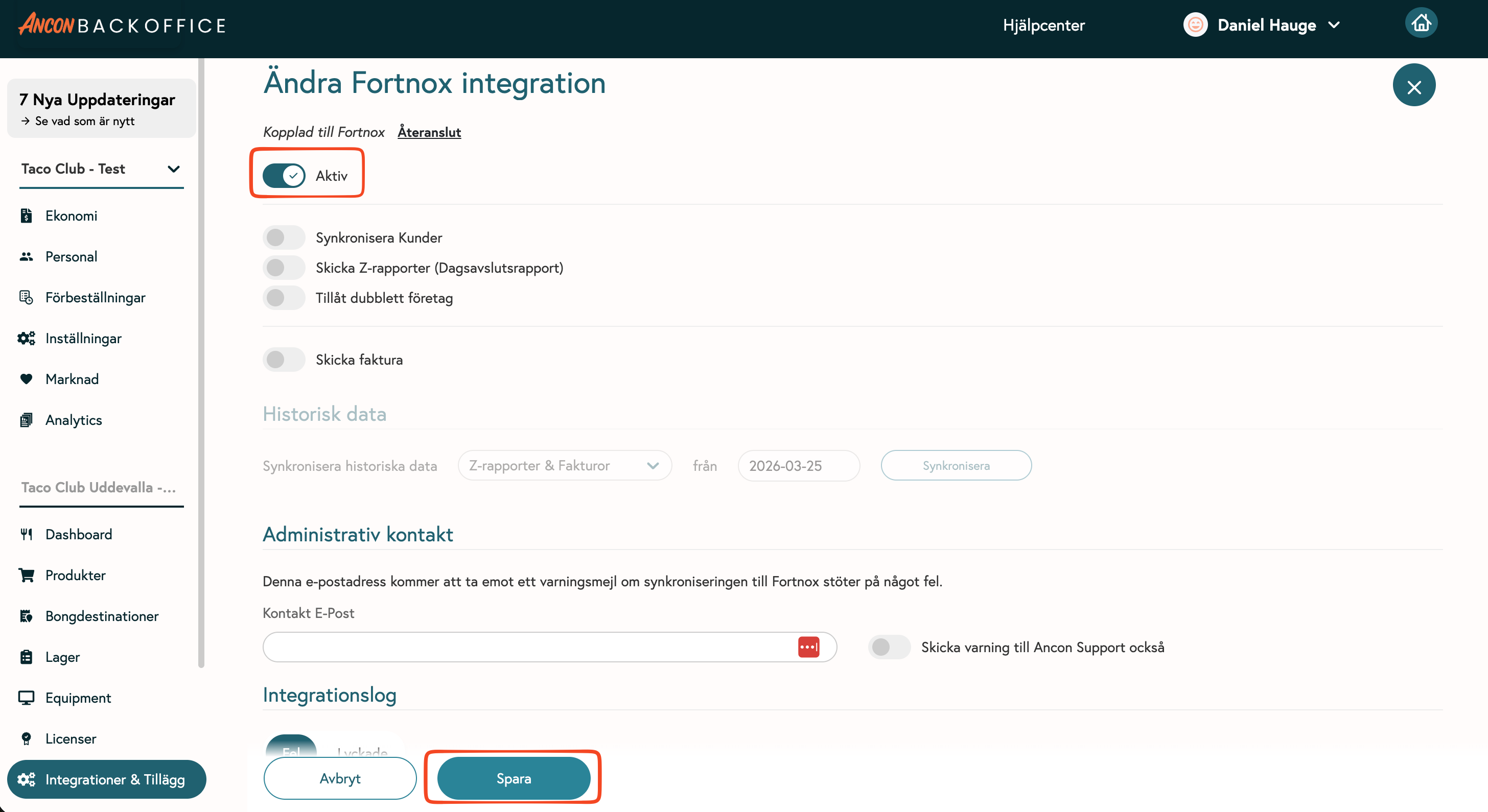
Log in to your Fortnox account in the window that appears, select the correct company, and approve the permissions.
Return to Ancon Cloud, check the Active box, and then click “Save.”
3. Configure features
Under the integration settings, you can now choose which features to enable:
Sync customers from Fortnox: Imports your customer database so you can easily select customers at checkout.
Send Z-reports: Automates the posting of today’s sales directly to Fortnox.
Send Invoice: Enables you to send invoice data directly from Ancon POS to Fortnox.
Allow duplicates: Use this only if you have multiple companies with the same name but different Fortnox IDs.
Note: Contact support if you are unsure whether this applies to you.
4. Settings for Invoicing and Accounting
To fine-tune how data is imported into Fortnox, check the following settings in the Backoffice:
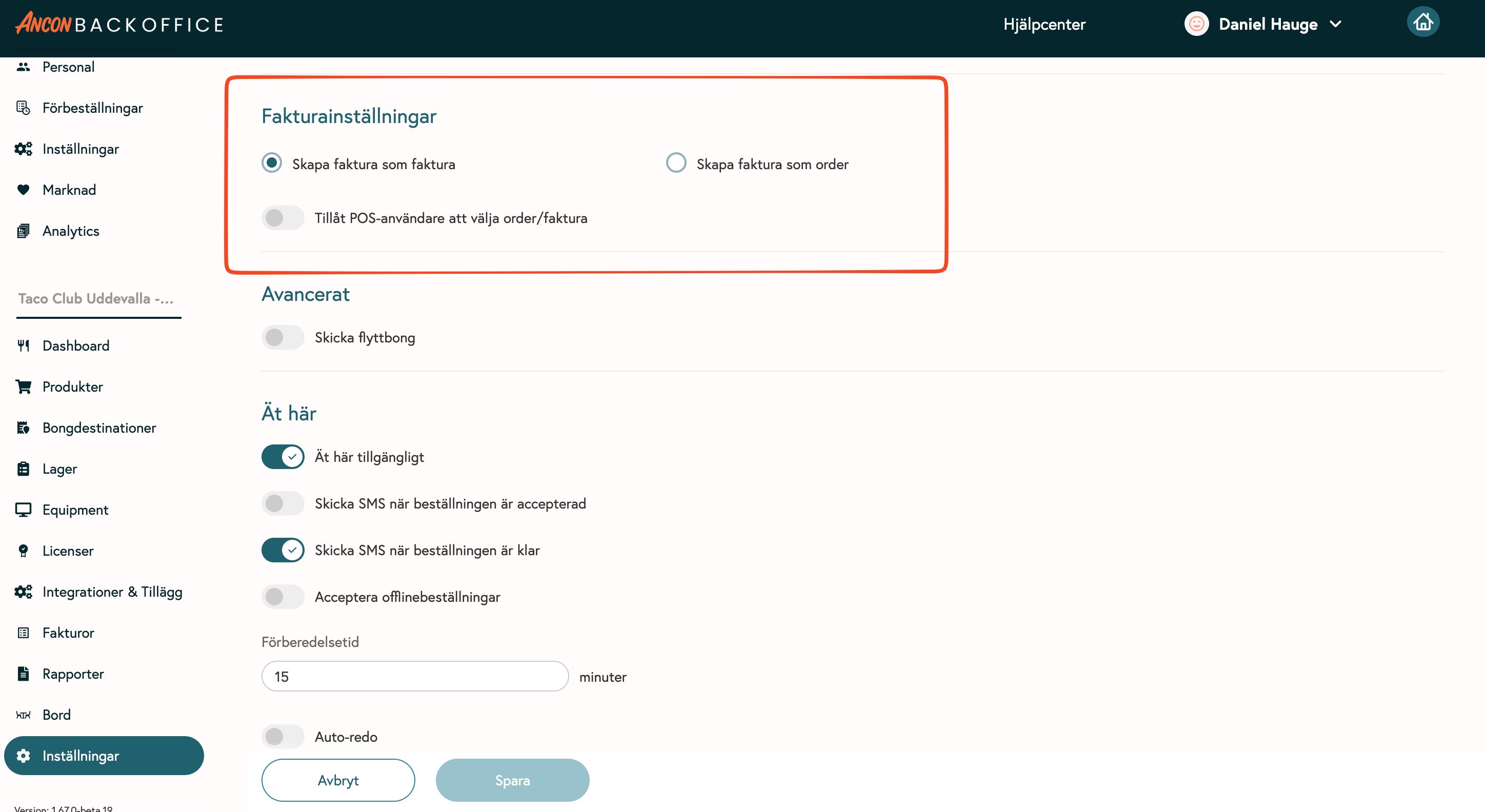
Select invoice document type
Do you want the documents to be imported as a finished invoice or as an order in Fortnox?
Go to Settings -> Invoice Settings.
Choose between "Order" or "Invoice".
Adjust voucher series
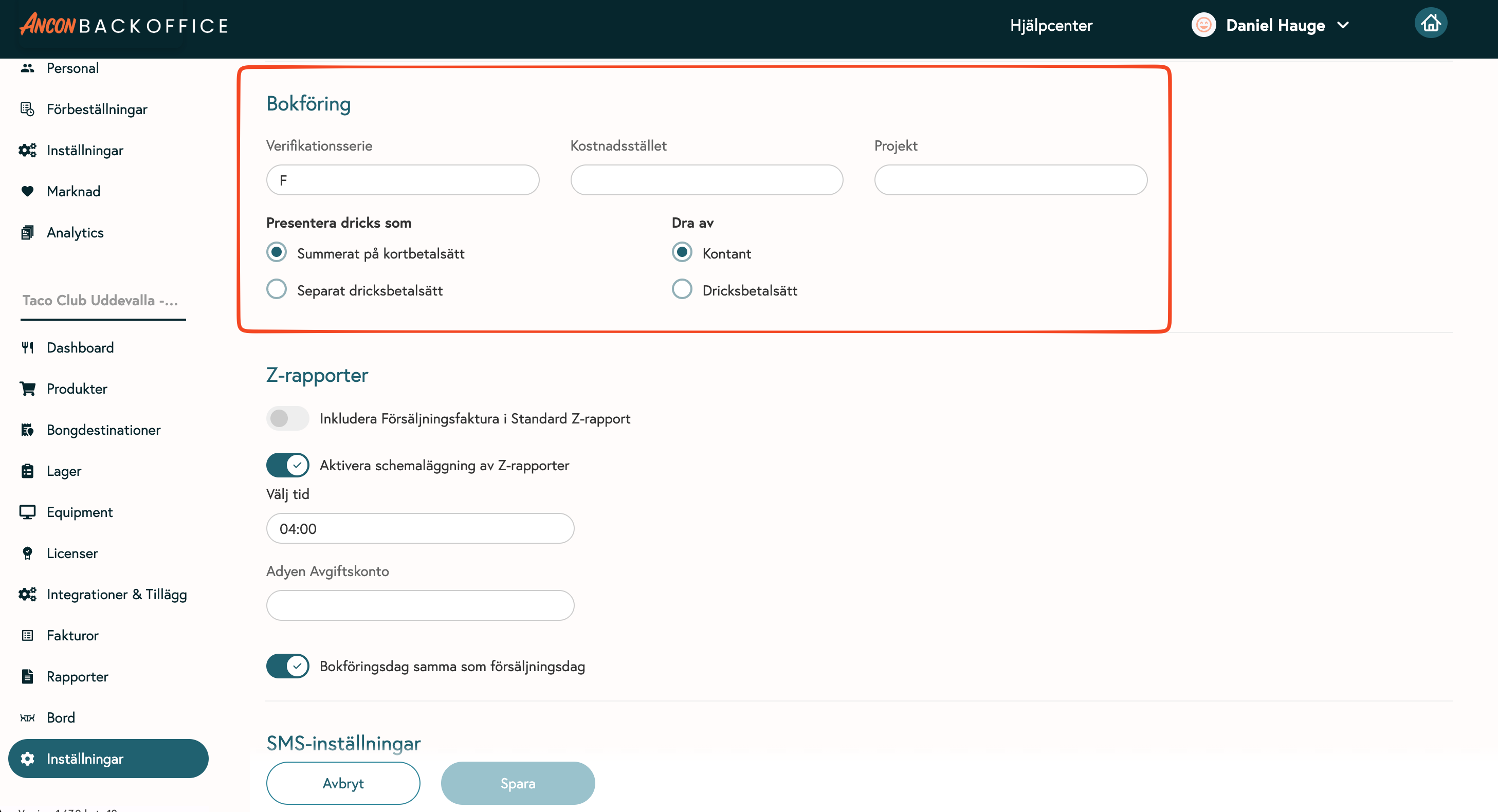
To control which series (e.g., Series A) the entry is posted to:
Go to Settings -> Accounting.
Enter the desired voucher series for your transactions.
Was this helpful?
Still need help? Share an idea